How to compress a PDF without losing quality
"File exceeds the maximum attachment size." A 40 MB scan, a 25 MB limit, and a deadline. Compressing the PDF is the fix, and done properly it does not turn your document into a blurry mess.
This guide explains what PDF compression actually does, how to compress a file in the browser, and how to choose a level so the result is small enough to send but still pleasant to read.
What PDF compression actually removes
A PDF is mostly two things: text instructions, which are tiny, and images, which are enormous by comparison. A page of text takes a few kilobytes. The same page as a 300 DPI scan takes a few megabytes, roughly a thousand times more.
Good compression therefore concentrates on the images: re-encoding them more efficiently and reducing resolution that no screen or printer would ever show, then stripping redundant data such as duplicated fonts and dead objects. The text layer is left alone, which is why a properly compressed PDF keeps selectable, searchable, razor-sharp text.
It also explains the two outcomes you will see. A scanned contract drops from 40 MB to 4 MB, because it was nearly all image data. A text-only report barely changes, because there was almost nothing to remove. If your file will not shrink, that is usually the reason, not a broken tool.
Compress a PDF in your browser
- Open the Compress PDF tool and upload the PDF you want to shrink.
- Pick a compression level.
- Check the size saving shown on screen, then download.
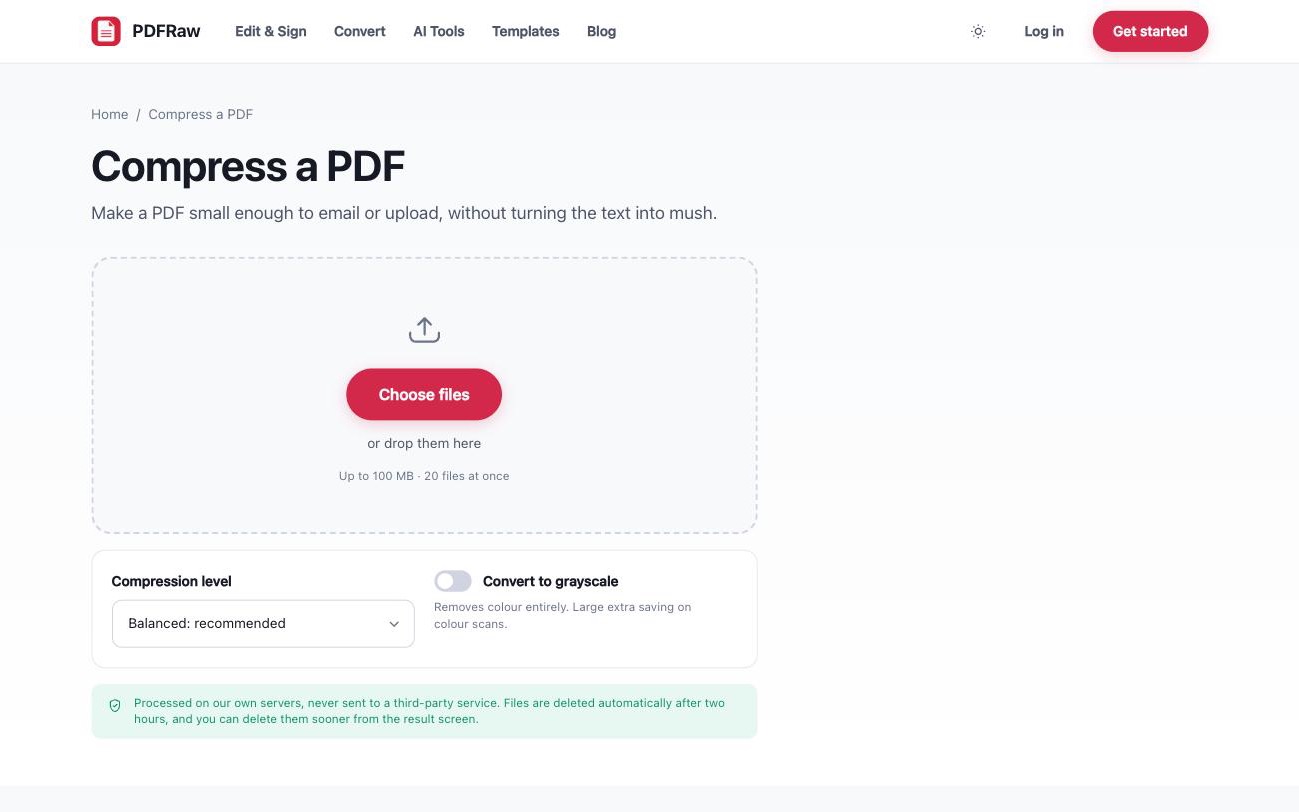
The tool shows you the resulting size before you commit, so if the first level does not get under your limit, try the next one and compare. No watermark, no account, and files are deleted from our servers two hours after upload.
Which compression level should you pick?
There are four levels, and the honest way to describe them is as a trade-off between size and image detail:
- Light re-encodes images without visibly changing them. Use it when quality matters more than size, for example a portfolio or anything with photographs.
- Balanced is the sensible default. Differences are hard to spot on screen, and the saving is usually substantial.
- Strong reduces image resolution noticeably in exchange for a much smaller file. Fine for documents people will read once on screen.
- Maximum is for hard limits: a portal that refuses anything over 10 MB, a form that caps uploads at 2 MB. Expect visibly softer images, and readable text.
A practical approach: start at Balanced. If the file is still over your limit, step up one level at a time and let the on-screen size preview tell you when to stop.
The limits you are probably compressing for
Most compression is done to get under someone else's ceiling. The common ones:
- Gmail attachments: 25 MB.
- Outlook attachments: 20 MB.
- Many job application portals: 2 to 10 MB per document.
- Court e-filing systems and government portals: commonly 10 MB or less.
- Messaging apps: WhatsApp allows 2 GB, but recipients on mobile data will not thank you for it.
If the file is large because it contains many merged scans, consider whether everything needs to be in one document. Splitting off the appendix with Split PDF sometimes beats compressing the whole thing. And if you are combining files anyway, merge first, compress once. The order is covered in how to merge PDF files.
When the images are the deliverable
If what you actually need to send is photos rather than a document, compress the images themselves instead of wrapping them in a PDF first. The Compress images tool shrinks JPG and PNG files in bulk, and the JPG to PDF converter can then package them if a PDF is required. The full workflow is in how to convert JPG to PDF.
Frequently asked questions
How much smaller will my PDF get?
It depends almost entirely on what is inside. Image-heavy scans often drop by 70 to 90 percent. A text-only document may barely change, because there is little redundancy to remove.
Will compression make my PDF blurry?
At the balanced level, differences are hard to see on screen. Higher levels reduce image resolution more aggressively. The tool shows the resulting size before you download, so you can step back a level if the trade-off is wrong.
Does compressing a PDF affect the text?
No. Compression targets images and redundant data. Text remains selectable and searchable rather than being flattened into a picture.
Can I compress a password-protected PDF?
Not directly, because the file cannot be read while encrypted. Remove the password first with the Unlock PDF tool, compress, then protect it again if needed.
Is it safe to compress confidential documents online?
On PDFRaw, files are processed on our own servers, never sent to a third-party API, and deleted automatically two hours after upload. There is also a delete button on the result screen if you want the file gone immediately.