How to convert a PDF to Word
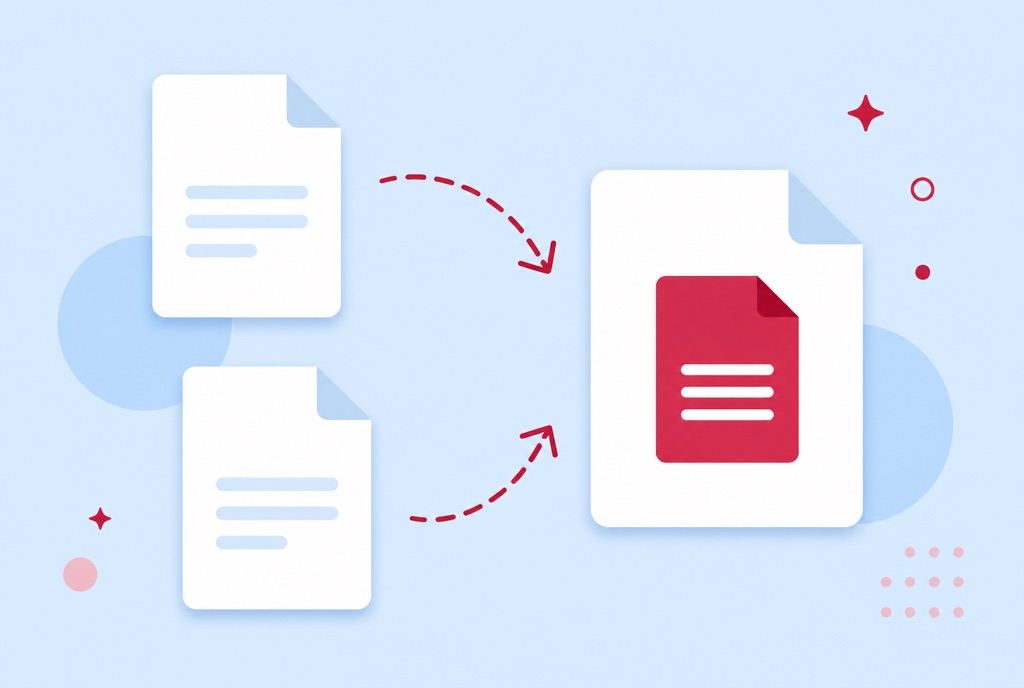
Someone sends you a PDF and asks for "a few small changes". PDFs are built for reading, not editing, so the practical route is usually to convert the file to Word, edit it there, and export it back.
This guide shows the conversion itself, explains why some PDFs convert beautifully and others fall apart, and covers the two special cases that trip people up: scanned documents and files you need to send back as PDF afterwards.
Convert a PDF to Word in your browser
- Open the PDF to Word converter and drop in your PDF.
- Wait a few seconds while the file converts. Sensible settings are picked automatically.
- Download the .docx file and open it in Word, Google Docs or LibreOffice.
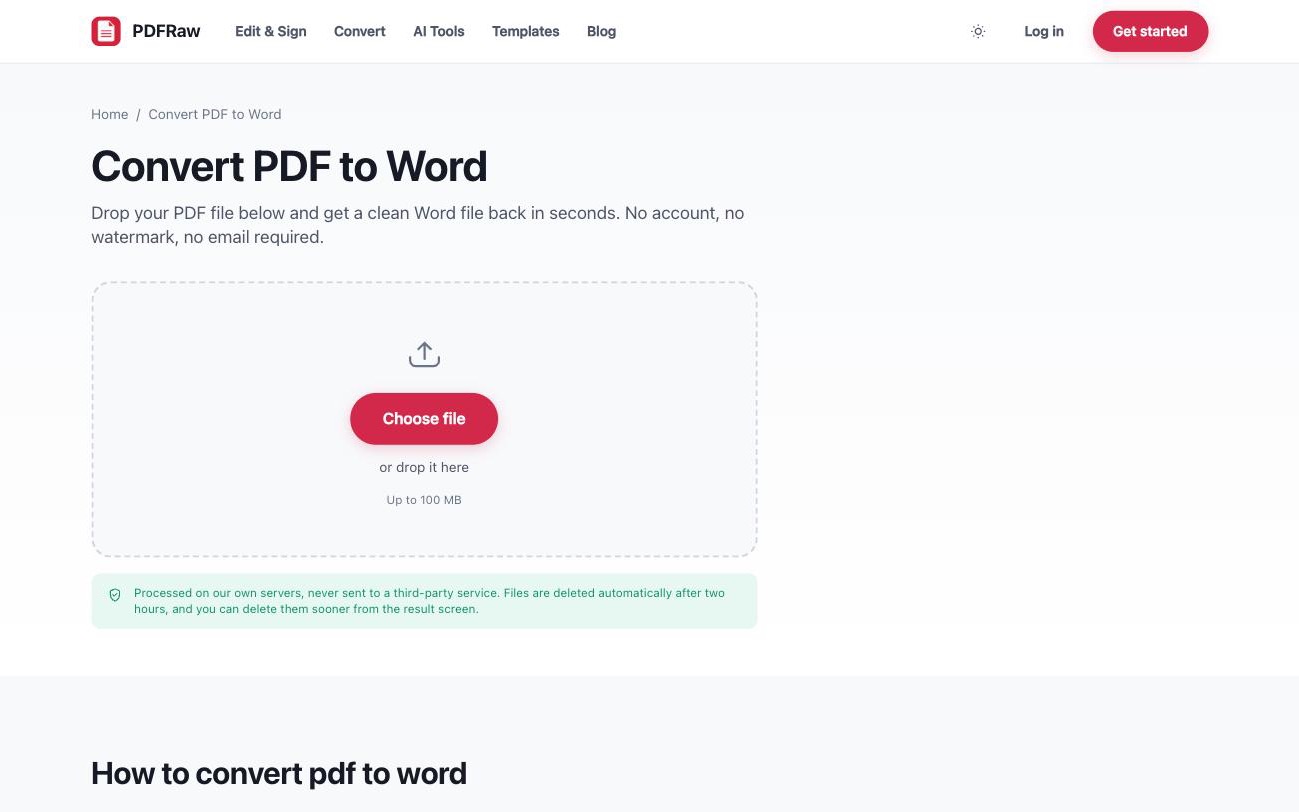
The output is a real, editable Word document: headings are headings, tables are tables, and text flows when you type into it. Conversion runs on our own servers, nothing goes to a third-party service, and files are deleted automatically after two hours.
Why some PDFs convert badly
A PDF stores where things sit on the page, not how they relate to each other. A converter has to reconstruct the logic: this is a heading, these lines are one paragraph, these boxes form a table. How well that works depends on the document:
- Simple, text-first documents convert almost perfectly. Letters, contracts, reports with standard headings.
- Multi-column layouts are harder. Magazine-style pages sometimes come back as one column, or with text boxes where you expected flowing text.
- Heavy design work rarely survives intact. A brochure built in InDesign was never really a text document to begin with.
- Unusual fonts get substituted if they are not embedded, which shifts line breaks even when the text is right.
If the converted file needs cleanup, do it in Word rather than fighting the PDF. And when you only need to fix a typo or add a line, converting is overkill: edit the PDF directly instead.
Scanned PDFs: run OCR first
A scanned PDF is a photograph of paper. There is no text in the file, only pixels, so a straight conversion has nothing to work with and returns a Word file containing pictures of your pages.
The fix is OCR, optical character recognition, which reads the images and adds a real text layer. Run your scan through the PDF OCR tool first, then convert the result to Word. Recognition quality depends on the scan: straight pages, decent contrast and 300 DPI or better give the cleanest text.
If you only need the words and not the layout, PDF to text is a lighter option that skips the Word step entirely.
Converting back to PDF when you are done
Word files are for editing; PDFs are for sending. A .docx renders differently depending on the fonts installed on the reader's machine, which is how layouts break in transit. Once your edits are made, convert the file back with the Word to PDF converter so everyone sees the same document.
If the document needs a signature rather than edits, skip the round trip entirely. You can sign the PDF directly without ever touching Word. And if the document is a book rather than a report, Word is the wrong destination altogether: EPUB, MOBI or AZW3 covers the reflowable formats and why coming back out of a PDF into one of them loses so much.
Frequently asked questions
Is converting PDF to Word free?
Yes. No account, no watermark on the output, and no page-count teaser that asks for a card halfway through.
Will my formatting survive the conversion?
For text-first documents, almost always. Complex layouts with columns, text boxes and decorative elements convert approximately, and are worth a quick review before you send the result anywhere.
Why is my converted Word file just images?
Your PDF is a scan, so there was no text to convert. Run it through the OCR tool first to add a text layer, then convert to Word.
Can I convert a Word file back to PDF?
Yes, with the Word to PDF converter. Layout, fonts and images carry across, so the PDF looks like the document you edited.
Is it safe to upload contracts and private documents?
Files are converted on our own servers, never handed to a third-party API, deleted automatically after two hours, and never read by a person or used to train any model.