How to merge PDF files
Scanned pages in one file, a cover letter in another, an appendix somewhere else. Sooner or later everything needs to become one PDF, usually five minutes before you have to send it.
This guide covers three ways to combine PDF files: an online tool that works on any device, the built-in option on a Mac, and what your realistic options are on Windows. All three are free.
Merge PDFs online (any device)
The fastest route on any computer or phone is a browser tool. PDFRaw's Merge PDF tool combines up to 50 files at once and runs entirely from the browser, so there is nothing to install and it works the same on Windows, macOS, Linux and your phone.
- Open the Merge PDF tool and add two or more PDF files.
- Drag the thumbnails to set the order. What you see is the page order you get.
- Merge and download the combined PDF.
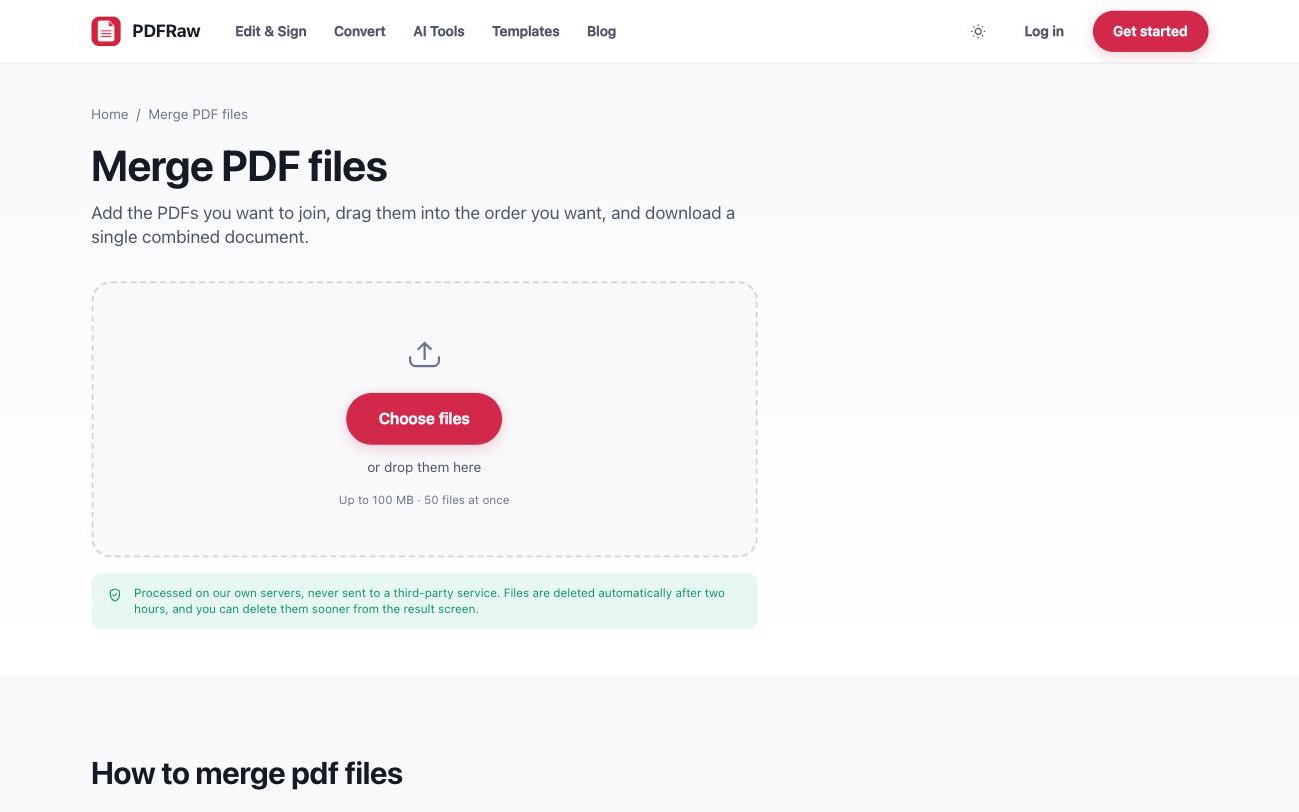
The output is exactly your pages in your order. No watermark on the result, no sign-up wall in front of it, and files are processed on our own servers, then deleted automatically two hours after upload.
Merge PDFs on a Mac with Preview
macOS can do this without any extra software. Preview, the built-in PDF viewer, lets you drag pages from one document into another.
- Open the first PDF in Preview and choose View, then Thumbnails, so the sidebar shows every page.
- Drag the second PDF file from Finder into the thumbnail sidebar, at the position where its pages belong.
- Choose File, then Export as PDF, to save the combined document.
This works well for joining two or three files. It gets tedious past that, there is no batch option, and one wrong drop rearranges pages silently. For anything bigger than a quick join, a purpose-built tool is less error-prone.
Merge PDFs on Windows
Windows has no built-in equivalent of Preview. Your options are installing a desktop PDF application, most of which either cost money or watermark the free tier, or using a browser tool. Since merging is occasional work for most people, the browser tool usually wins: nothing to install, nothing to pay, and the result carries no watermark.
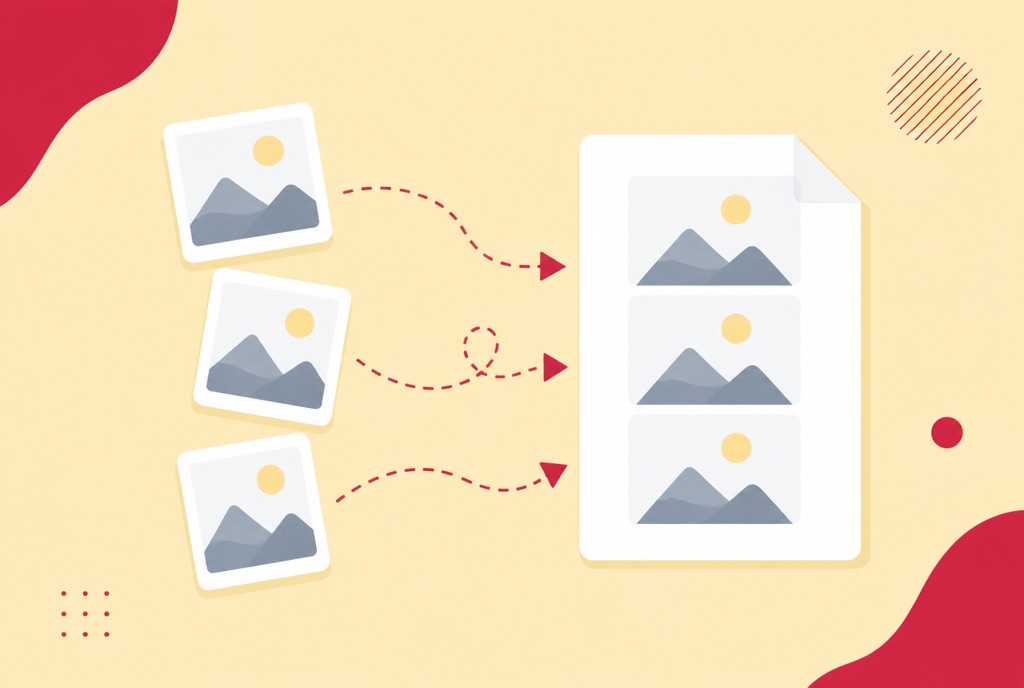
If the files you want to join are not all PDFs yet, convert them first. Word documents go through the Word to PDF converter, and photos or scans through JPG to PDF. Then merge the results.
Get the pages right before you merge
Merging is the last step. If the source files themselves need work, do that first and the merge stays simple:
- A file contains pages you do not want in the result. Remove them with Delete PDF pages before merging.
- You only need part of a document. Pull out the pages you want with Extract PDF pages.
- Pages inside one file are in the wrong order, or need rotating. Organize PDF handles reordering and rotation in one pass.
- One big file needs to become several. That is the opposite job: Split PDF.
If the merged file is too big to send
Combining several scans can produce a file that email refuses to attach. Gmail caps attachments at 25 MB and Outlook at 20 MB. If your merged PDF lands over the limit, run it through the Compress PDF tool. Image-heavy scans often shrink by 70 to 90 percent while staying readable. There is a full walkthrough in how to compress a PDF without losing quality.
Frequently asked questions
Is it really free to merge PDF files?
Yes. The merge tool is free, does not watermark the output, and does not require an account. Free tools that stamp their logo on your document are advertising, not tools.
How many PDFs can I combine at once?
Up to 50 files in one merge. If you have more, merge in batches and then merge the results.
Will merging change the quality of my PDFs?
No. Merging copies pages into a new document without re-encoding them. Text stays selectable and images keep their original resolution.
Is it safe to upload my PDFs to an online merger?
It depends on the tool, so check what happens to your file. On PDFRaw, files are processed on our own servers, never handed to a third-party API, and deleted automatically two hours after upload. You can also delete them immediately from the result screen.
Can I change the page order after merging?
Yes. Open the merged file in the Organize PDF tool to reorder, rotate or remove pages. It is easier, though, to set the file order before merging.