How to convert JPG images to PDF
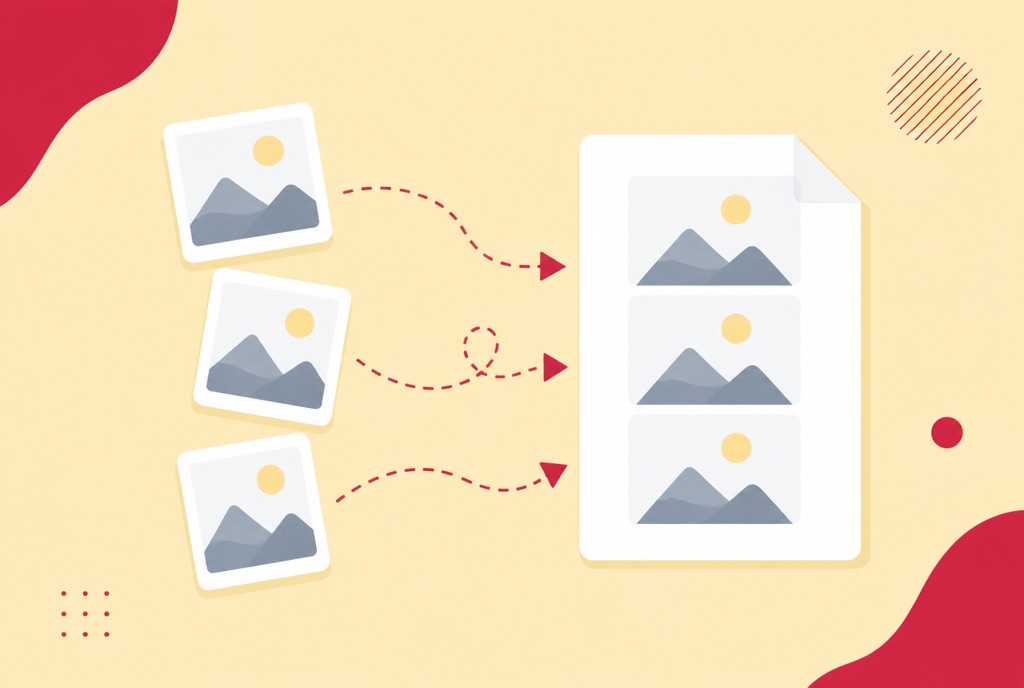
Photograph three pages of a contract with your phone and you have three image files nobody wants to receive. What the other side expects is one PDF, pages in order.
This guide covers converting a single JPG, batching many photos into one document, the iPhone HEIC surprise, and how to keep a photo-heavy PDF from ballooning to 50 MB.
Convert JPG to PDF in your browser
- Open the JPG to PDF converter and add one or more images.
- Drag them into the order the pages should appear.
- Download the PDF. Each image becomes one page.
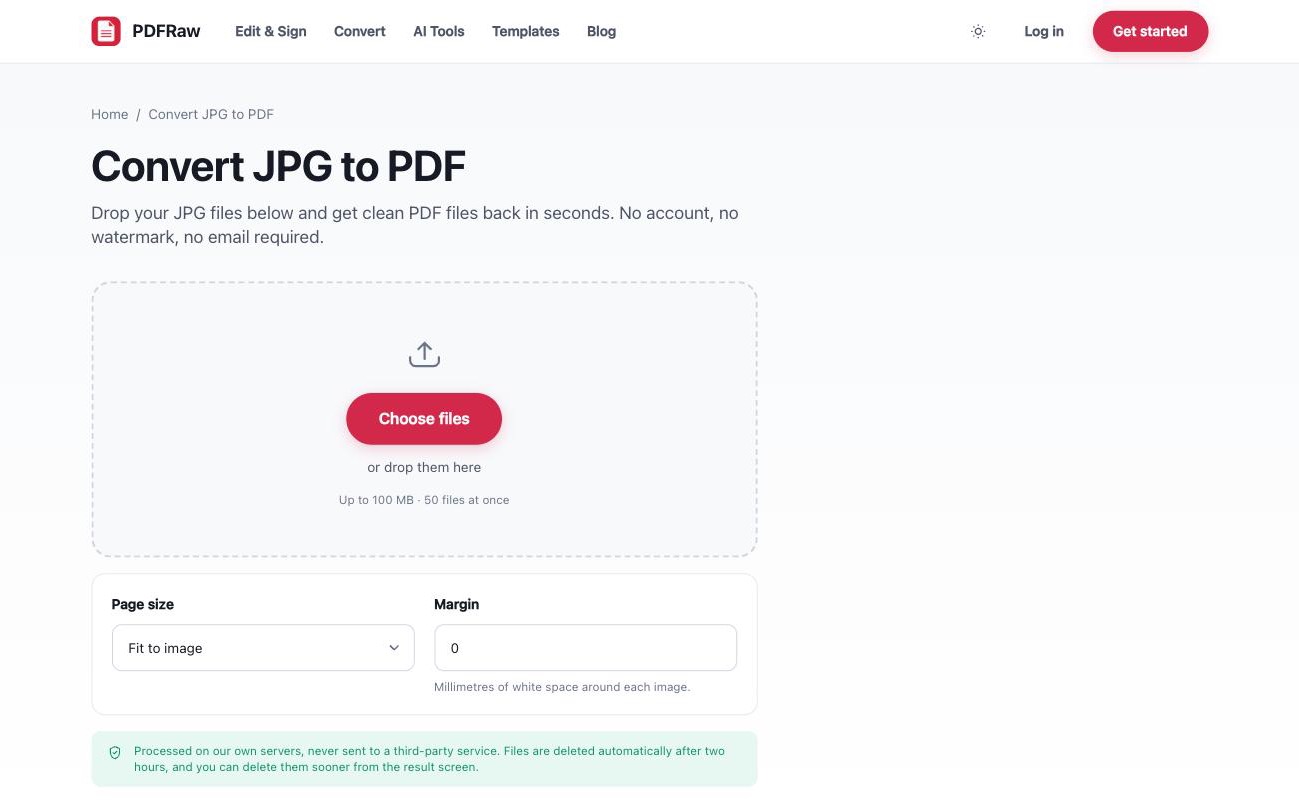
The converter runs in the browser on any device, including the phone the photos are already on, which saves the email-them-to-yourself step. No account, no watermark, and images are deleted from our servers two hours after upload.
Not actually a JPG? PNG, HEIC and friends
The most common surprise: photos straight off an iPhone are often HEIC, not JPG, and plenty of tools reject them. Two options: convert the photos first with HEIC to JPG, or skip the detour and use the Image to PDF converter, which accepts mixed formats in one batch.
- Screenshots are usually PNG. PNG to PDF handles them directly.
- Mixed folder of formats? Image to PDF takes JPG, PNG, WebP, HEIC and more in a single job.
- Need the reverse at some point? PDF to JPG turns pages back into images.
Turning photographed paperwork into something usable
A photo of a page is a picture, not text. That is fine for reading, but nobody can search it, select from it, or copy a reference number out of it. If the PDF you are building is paperwork rather than pictures, two extra steps raise its quality considerably:
- Run the finished PDF through OCR to add a searchable, selectable text layer behind the images.
- If some pages came out sideways, fix them with Rotate PDF rather than making recipients tilt their heads.
Pages from different sources, some photos, some existing PDFs, can be combined afterwards. Convert the photos first, then follow how to merge PDF files to join everything into one document.
Keeping the PDF a sensible size
Modern phone cameras shoot 12 megapixel images at 3 to 5 MB each. Twenty photos become a 60 to 100 MB PDF, which no email will carry. Two ways to avoid that:
- Shrink the images before converting with Compress images. For documents, images compressed to a quarter of their original size remain perfectly readable.
- Or convert first and compress the finished PDF. Scan-style PDFs routinely shrink by 70 to 90 percent.
Either order works. Compressing the images first gives you more control per photo; compressing the PDF afterwards is one step instead of many. The details are in how to compress a PDF without losing quality.
Frequently asked questions
Can I combine multiple JPGs into one PDF?
Yes. Add all the images in one job, drag them into order, and the converter produces a single PDF with one image per page.
My iPhone photos will not upload as JPG. Why?
Recent iPhones save photos as HEIC by default. Convert them with the HEIC to JPG tool, or use the Image to PDF converter, which accepts HEIC directly.
Does converting reduce my image quality?
No. Images are embedded in the PDF at their original resolution. If the result is too large to send, that is what the compress tools are for, and you control the trade-off there.
Can I make the text in my photos searchable?
Yes. After converting, run the PDF through the OCR tool. It reads the images and adds a selectable, searchable text layer behind them.
Is there a limit on how many images I can convert?
Batches of up to 50 images work in one job. For more, convert in batches and merge the resulting PDFs.