How to make a scanned PDF searchable
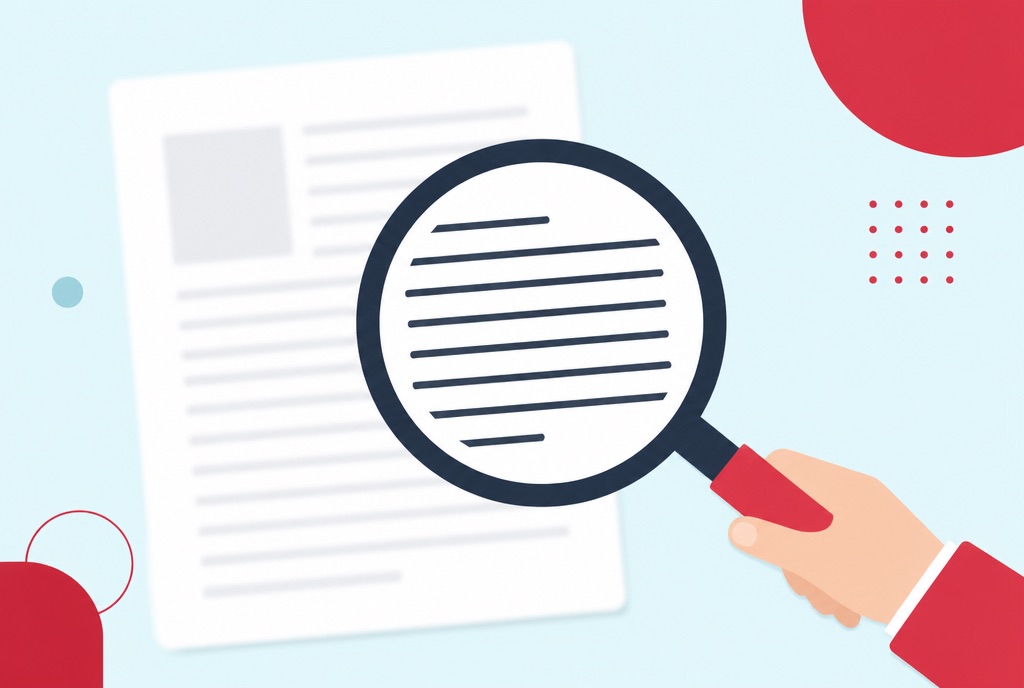
You press Ctrl+F, type a word you can plainly see on the page, and nothing comes back. The scan is a photo of a document rather than a document, and to make a scanned PDF searchable you have to put the text back in a form software can actually read.
That job is called OCR, and it no longer requires desktop software or an account. This guide explains what OCR does in plain terms, how to run it in your browser, how to scan pages so recognition stays accurate, and what becomes possible once your PDF contains real text.
Why you cannot search a scanned PDF
A born-digital PDF, one exported from Word or a billing system, stores text as text: characters, fonts and positions. Search, selection and copying work because the characters are genuinely in the file.
A scanner produces something different: a picture of the page, wrapped in PDF packaging. To software there is no text at all, only pixels that happen to look like letters to a human. That is why Ctrl+F finds nothing, why you cannot select a sentence, and why screen readers go silent. The file needs a text layer before any of that can work. The same problem blocks editing, which is covered in why can't I edit my PDF.
What OCR does to make a scanned PDF searchable
OCR, optical character recognition, is software that reads the page image the way a person would: it finds the lines of text, splits them into characters, and works out which letter each shape is. The recognised text is then placed as an invisible layer behind the original image. The page looks exactly as it did before, but underneath it now contains real, machine-readable text.
That invisible-layer trick is the whole point. Search, copying and selection start working, while stamps, signatures and the general look of the original stay untouched. The PDF OCR tool recognises over 100 languages, including non-Latin scripts, and telling it the right language noticeably improves accuracy.
Make a scanned PDF searchable in your browser
- Open the PDF OCR tool and upload the scanned PDF, or a photo of a document.
- Pick the language of the text. It takes two seconds and noticeably improves recognition.
- Download the searchable PDF, or just the plain text if that is all you need.
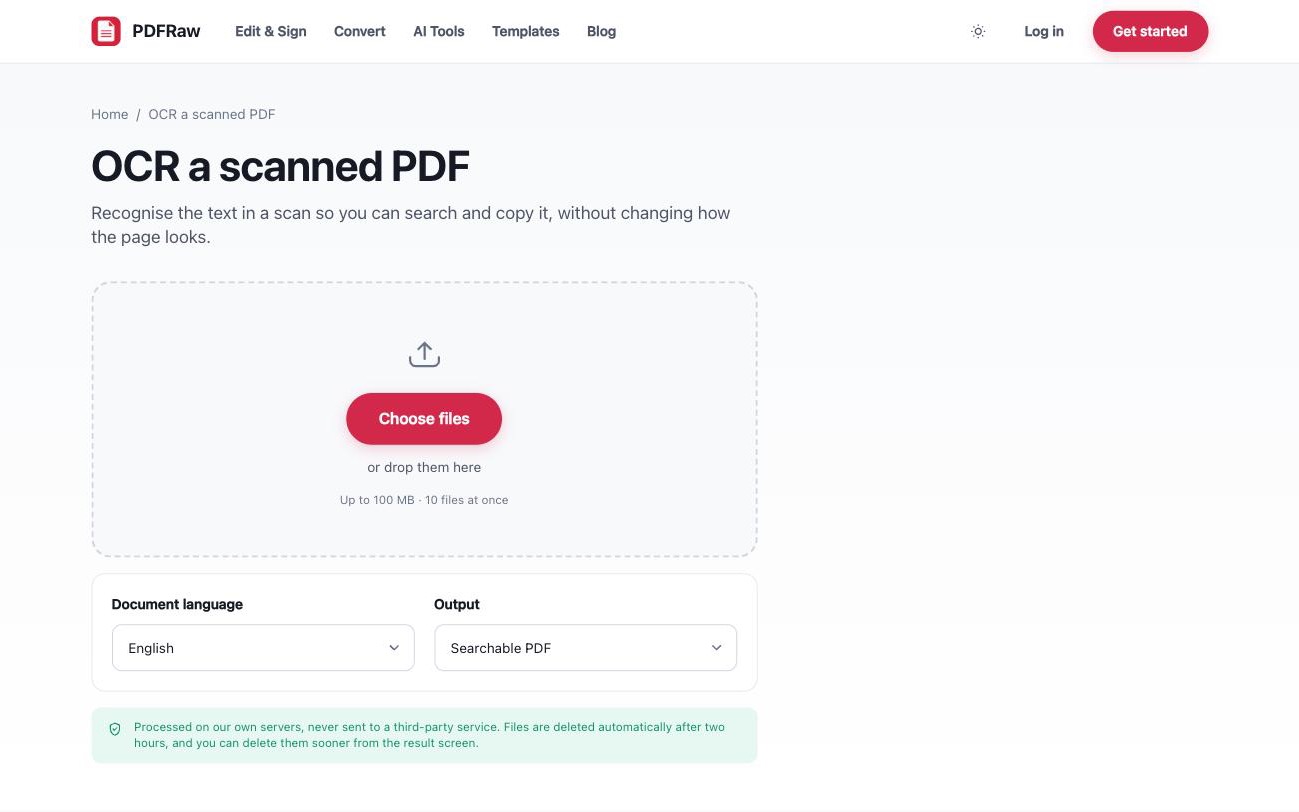
You can process up to 10 files at once, uploads are capped at 100 MB per file, and the result carries no watermark. Files are processed on our own servers, never sent to a third-party API, and deleted automatically two hours after upload.
Scan quality tips for accurate OCR
Recognition quality is mostly decided before the software ever runs, at the scanner or the phone camera. On a clean 300 DPI scan of printed text, accuracy is typically well above 95 percent. The same page scanned badly can land far below that.
- Scan at 300 DPI. Lower resolutions blur the letter shapes OCR depends on; much higher ones mostly add file size.
- Keep pages straight. Skewed text is markedly harder to recognise. Most scanner software has a deskew option; use it.
- Get the contrast right. Dark text on a clean white background works best. When photographing with a phone, avoid shadows falling across the page.
- Flatten the page. Text curving into a book spine confuses recognition. Press the page flat or photograph it straight on.
- Do not expect miracles on handwriting. OCR is built for printed text; handwriting results vary a lot.
If the scan already exists and is poor, rescanning at 300 DPI usually beats any amount of post-processing. Five minutes at the scanner saves an hour of correcting misread text.
What to do once the scan is searchable
A text layer is the unlock for everything else. If you need to change the wording rather than just find it, convert the searchable file with PDF to Word and edit in a normal word processor. The process and its honest limitations are covered in how to convert a PDF to Word.
If the problem is a 60-page scan you need to understand rather than read, the AI summarizer can condense it and answer questions about it, with each point citing the page it came from. See how to summarize a PDF with AI. Note that it only works when a text layer exists, which is exactly why OCR comes first.
Frequently asked questions
How accurate is OCR on a scanned PDF?
On a clean 300 DPI scan of printed text, typically well above 95 percent. Accuracy falls with low resolution, skewed pages, handwriting and unusual fonts, which is why scan quality is worth getting right first.
Does OCR change how my document looks?
No. The recognised text is placed invisibly behind the original page image, so the document looks identical. The difference is that search, selection and copying now work.
Does OCR work on handwriting?
Not reliably. It is built for printed text, and handwriting results vary a lot. For a handwritten page, plan on transcribing the important parts yourself.
Can I OCR a photo of a document instead of a scan?
Yes. The tool accepts JPG, PNG and TIFF images as well as PDFs. Photograph the page flat, in even light, with the camera square to the paper for the best results.
Is it safe to OCR confidential documents online?
On PDFRaw, files are processed on our own servers, not sent to a third-party API, and deleted automatically two hours after upload. No account is required.