How to summarize a PDF with AI
A 60-page report, a meeting in twenty minutes, and one question: what does this actually say? Reading is the right answer when the stakes are high. The rest of the time, a good summary gets you oriented in a fraction of the time.
This guide shows how to summarize a PDF with AI, what separates a trustworthy summary from a confident-sounding one, and the honest limits of the technique.
Summarize a PDF in your browser
- Open the AI PDF Summarizer and upload a PDF, Word file or text document.
- Choose how detailed you want the summary, from key points to a section-by-section digest.
- Read the summary, then ask follow-up questions about anything in the document.
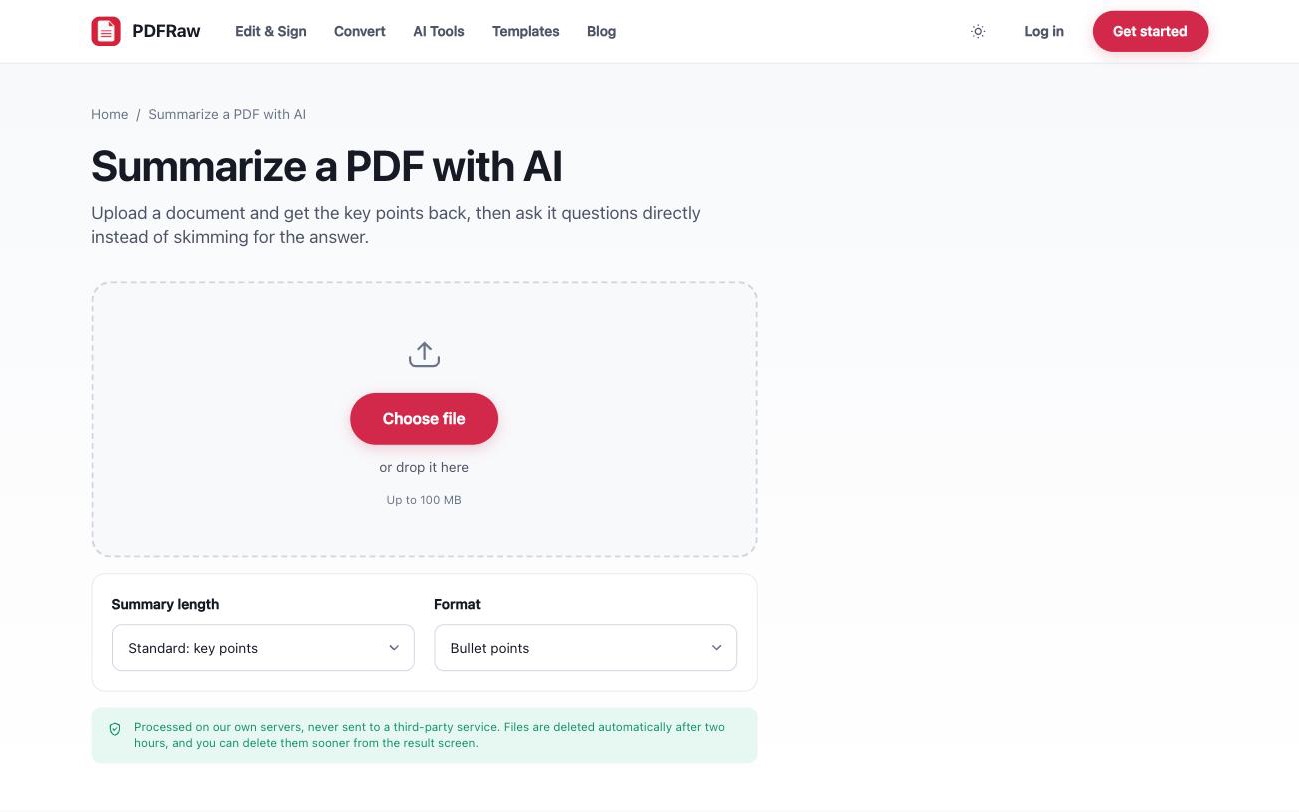
Documents of several hundred pages work: very long files are summarised section by section and then combined. Your content is sent to the language model only to answer your request, is not retained, and is not used to train anything. The full privacy picture, including how the AI tools differ from the rest of the site, is in is it safe to upload a PDF online.
Why page citations are the feature that matters
Any AI can produce a fluent summary. The problem is that fluent and faithful are different properties, and a summary you cannot check is a summary you have to take on faith.
That is why each point in a PDFRaw summary references the page it came from. When something matters, the payment terms, the termination clause, the one number the meeting will be about, you jump to that page and read the source. The summary becomes a map of the document instead of a replacement for it.
That distinction is also the honest limit: a summary is good for getting oriented quickly, and it is not a substitute for reading anything that carries legal or financial weight.
Ask the document questions instead of skimming
Once the document is loaded, you can ask about anything in it: "What are the notice periods?", "Which regions grew?", "Where does it define the liability cap?". Answers are grounded in the actual text, which beats scrolling and Ctrl+F-ing synonyms until something matches.
This works best for interrogating a document you broadly understand. For a document in another language, translate the PDF first, or simply ask for the summary and answers in your language.
Two special cases: scans and books
Scanned documents are photographs of paper, and the summarizer needs text to read. If your PDF is a pure scan, run it through the OCR tool first to add a text layer, then summarize the result. The same preparation fixes conversion, covered in how to convert a PDF to Word.
Books and very long manuscripts are a different reading problem: you usually want chapter-level structure, themes and arguments rather than bullet points. The dedicated AI Book Summarizer is built for book-length PDFs and ebooks, so a book does not have to be converted to PDF first. If you are not sure what the file on your machine even is, EPUB, MOBI or AZW3: which ebook file you actually have sorts that out.
And when what you actually need is the raw text out of the file, for quoting or feeding into another tool, PDF to text does exactly that with no AI involved.
Frequently asked questions
How accurate are AI PDF summaries?
Good for getting oriented quickly, but not a substitute for reading anything that carries legal or financial weight. Each point cites its page so you can verify the source in seconds, which is the practical answer to the accuracy question.
How long a document can it handle?
Several hundred pages. Very long documents are summarised section by section and then combined into one summary.
Does it work on scanned documents?
Only if there is a text layer. For a pure scan, run the file through the OCR tool first, then summarize the result.
Is my document used to train AI models?
No. Content is sent to the language model to answer your request and is not retained or used to train anything. Files are deleted from our servers two hours after upload.
Can it summarize documents in other languages?
Yes. You can summarize a document written in another language, ask for the summary in yours, or translate the whole PDF first with the translate tool.