Why can't I edit my PDF? The four real reasons
You open the document, click on a word, and nothing happens. No cursor, no selection, no way in. "Why can't I edit my PDF" is one of the most searched PDF questions there is, and the frustrating part is that the file gives you no error message to work with.
The good news is that there are only four realistic causes, and each one announces itself if you know what to look for. This guide gives you a thirty-second diagnosis, then walks through each cause: the symptom, what is actually going on, and the fix.
Why you can't edit your PDF: a three-step diagnosis
Before downloading anything, work out which problem you actually have:
- Try to select text with your cursor. If nothing selects, or the whole page selects as one block like a photo, the PDF is a scan.
- Check for protection. If the file asks for a password when it opens, or the title bar says something like "(SECURED)", it is encrypted or restricted.
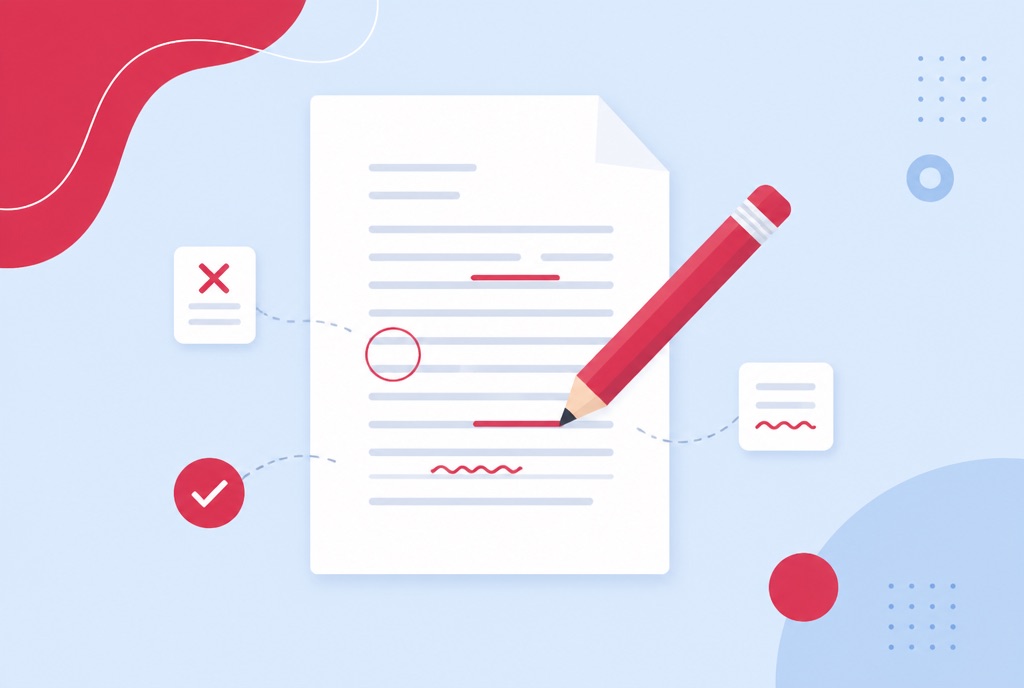
- If text selects fine and there is no lock, open the file in the Edit PDF tool. If you can now click into the text and change it, there was nothing wrong with the file. You were using a viewer.
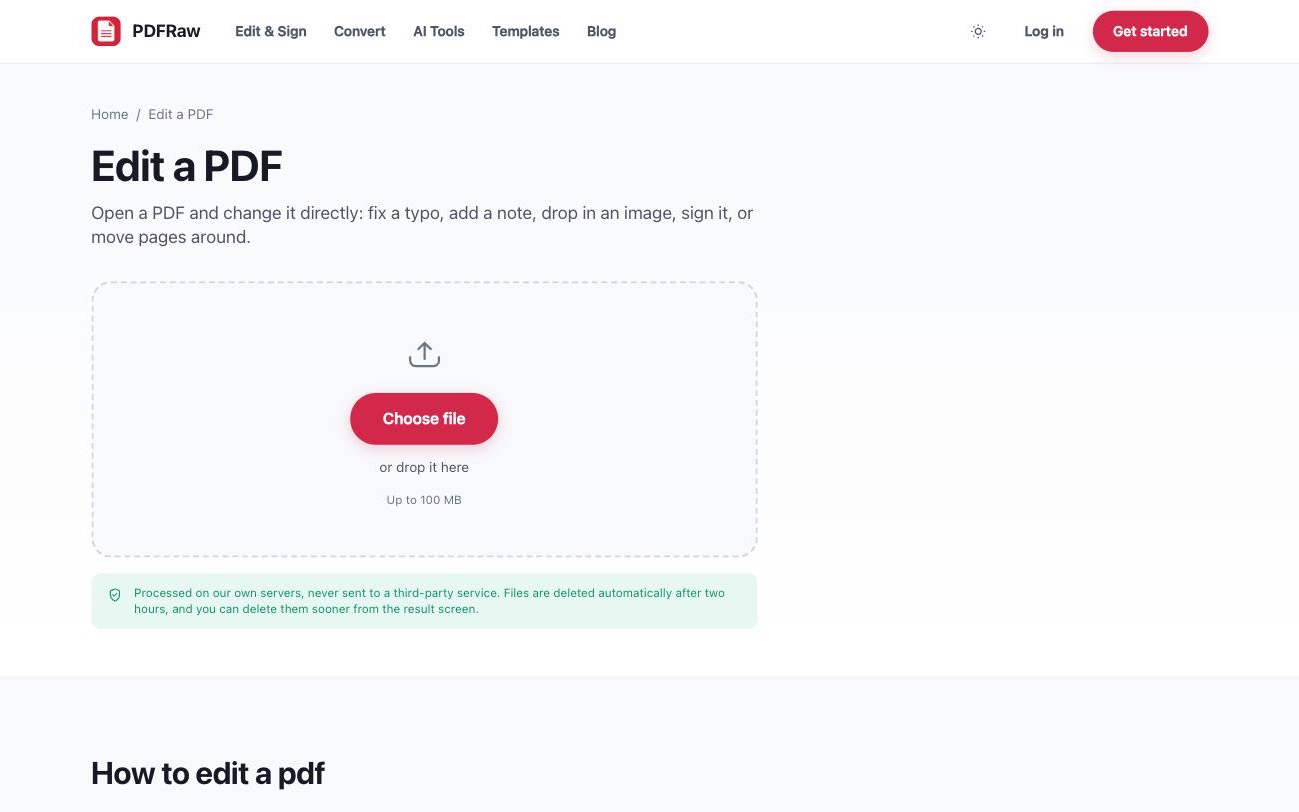
There is a trickier fourth case: text selects normally, there is no password, and yet form fields or content still refuse to change. That points to a flattened or signed document, covered in reason 3 below.
Reason 1: your PDF is a scan, so there is no text to edit
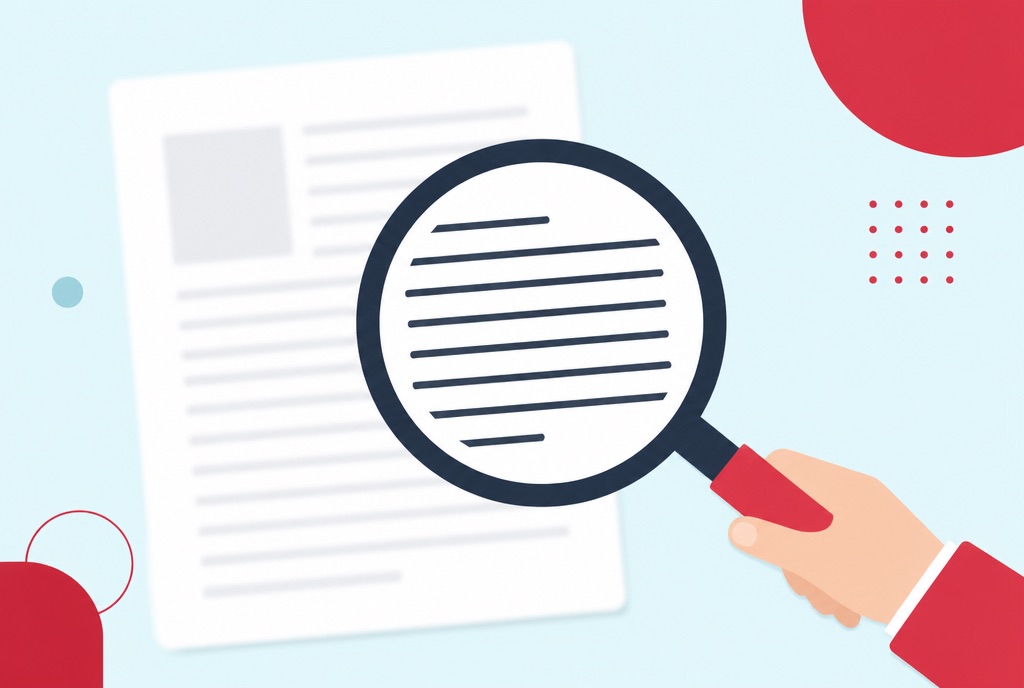
The symptom: you cannot place a cursor anywhere, search finds nothing, and copying gives you either nothing or the whole page as an image. The cause: the page is a photograph of a document. However sharp it looks, there are no letters in the file, only pixels, and no editor can click into pixels.
The fix is optical character recognition. The OCR tool recognises the text in the scan and places it invisibly behind the image, so the document looks identical but the text becomes real: searchable, selectable, copyable. On a clean 300 DPI scan, accuracy is typically well above 95 percent. The full walkthrough is in how to make a scanned PDF searchable.
Reason 2: the PDF is password protected
This symptom comes in two flavours. Either the file demands a password before it opens at all, or it opens fine but greys out editing, printing or copying. The first is an open password: the document is genuinely encrypted. The second is an owner restriction: a flag the author set, which compliant apps obey.
If you have the right to change the document, the fix is the Unlock PDF tool. Owner restrictions can be lifted without entering anything. An open password has to be supplied: if the document needs a password to open, no legitimate tool will get you in without it, because the encryption is real. Once unlocked, the pages, text and formatting are exactly as they were, minus the lock.
Reason 3: the PDF is flattened or digitally signed
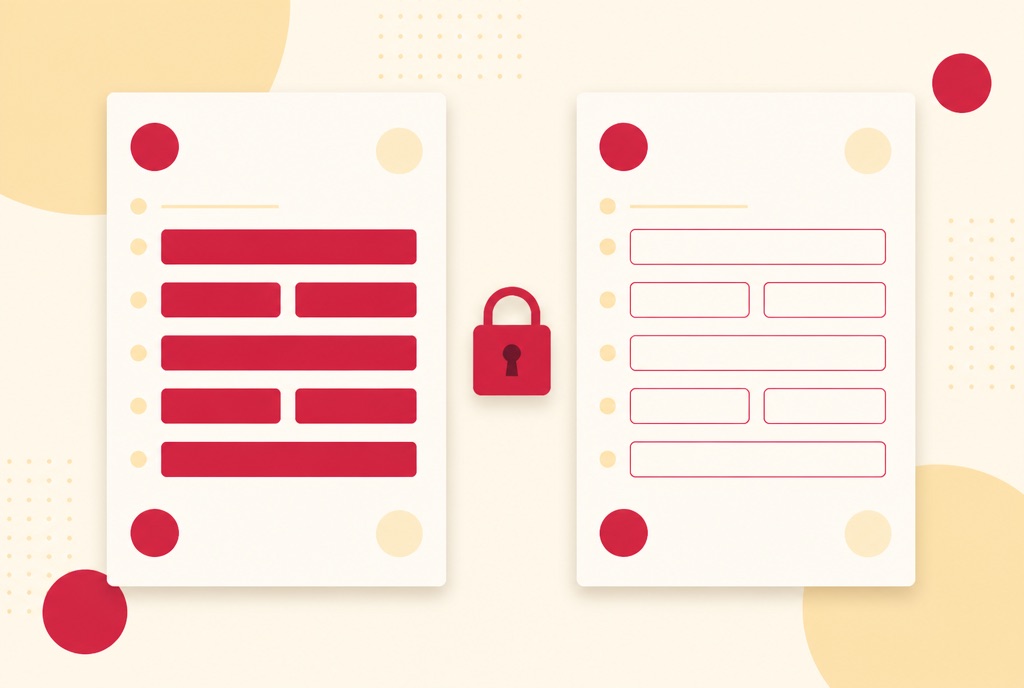
Sometimes a form that used to be fillable stops accepting input. That usually means it was flattened: the interactive fields were merged into the page as ordinary content, typically to freeze the answers. The fields are gone, so there is nothing left to click into. Senders do this on purpose, and why a filled PDF form looks blank to everyone else explains the problem it solves.
A digitally signed PDF is locked for a better reason. The signature certifies the exact contents of the file, so editors refuse changes rather than silently invalidate it. Any edit would break the signature, and that is by design.
The honest fixes: for a flattened form, use the Fill PDF tool, which lets you click anywhere on a flat page and type, no fields required. For a signed document, ask the sender for the unsigned version. Editing around a signature defeats the point of having one.
Reason 4: your app is a viewer, and viewers can't edit a PDF
This is the most common cause of all, and the least obvious, because the apps involved never explain themselves. Your browser's built-in PDF display, the free Adobe Acrobat Reader and most preview apps are viewers: they render PDFs faithfully and change nothing. Clicking on text in a viewer does nothing because nothing was ever going to happen.
The fix costs nothing: open the file in an actual editor. The Edit PDF tool runs in the browser and lets you click into text and change it, add images, shapes, notes and a signature, and move pages around. The full walkthrough, including when to convert to Word instead, is in how to edit a PDF without Adobe.
Frequently asked questions
Why can I select text in some PDFs but not others?
PDFs made from digital documents contain real text. PDFs made by a scanner or a phone camera contain an image of text. Selection only works on the former; OCR bridges the gap for the latter.
Can I edit a PDF that needs a password to open?
Only if you know the password. Supply it in the Unlock PDF tool to remove the encryption, then edit the unlocked copy. If you do not know the password, no legitimate tool will break the encryption for you.
Does OCR make a scanned PDF editable?
It makes the text real. The recognised text is placed invisibly behind the original image, so the page looks unchanged but becomes searchable and copyable, and editors can work with the text rather than the picture.
Will editing a signed PDF invalidate the signature?
Yes. A digital signature certifies the exact contents of the file, so any change breaks it. That is intended behaviour. If edits are needed, get an unsigned copy and re-sign after.
Is there a free way to actually edit a PDF?
Yes. PDFRaw's editor runs in the browser with no watermark, no account and a 100 MB upload limit. Files are processed on our own servers and deleted automatically two hours after upload.