How to rotate a PDF so it stays rotated

The scanner fed the pages in sideways, or the whole stack went through upside down, and now the PDF makes everyone tilt their head. To rotate a PDF properly you need the rotation saved into the file, and that is exactly where most people get caught out.
The trap: you hit rotate in your PDF viewer, the page turns, everything looks fixed, and you send the file. The recipient opens it sideways again, because most viewers rotate the view without touching the document. This guide explains the difference and how to make the fix permanent.
Why rotating a PDF in a viewer does not stick
There are two different things a rotate button can do. It can turn the page on your screen, a view rotation, or it can change the orientation stored inside the file, a saved rotation. Many viewers, including the PDF preview built into browsers, only do the first. The page looks right while you are looking at it, but the file underneath still says sideways.
That is why the problem keeps coming back. You rotate, close the file, reopen it, and it is sideways again. Or worse, it looks fine on your machine because your viewer remembered your preference, and arrives sideways in someone else's inbox. If a rotation ever "did not save", this is almost certainly what happened.
The fix is a tool that writes the rotation into the document itself. After that, every viewer on every device shows the page the same way up, because the file says so.
Rotate a PDF in your browser
- Open the Rotate PDF tool and upload your PDF.
- Pick the rotation: 90 degrees clockwise, 180, or 90 degrees counter-clockwise.
- Apply it to all pages, or list just the ones that are wrong, such as 1, 3, 5-9, then download.
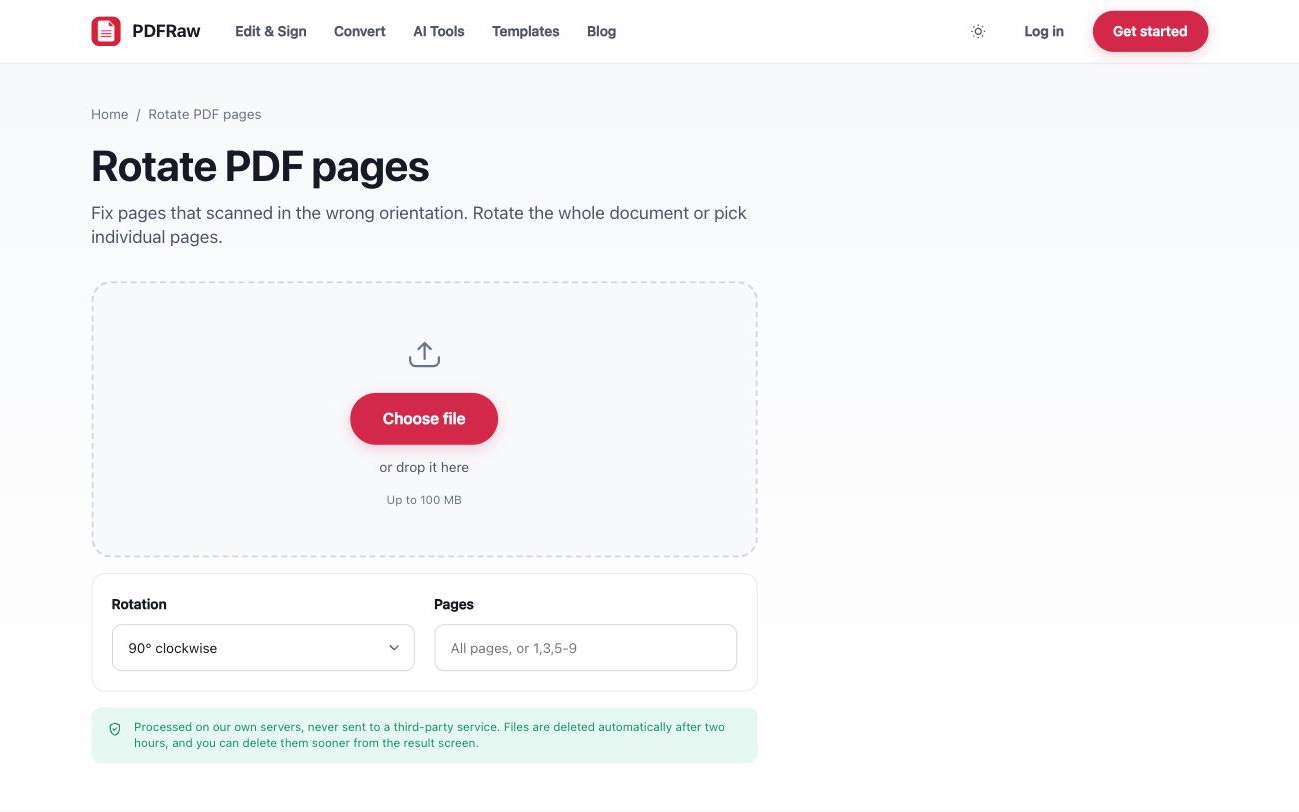
The new orientation is written into the file, so it opens correctly everywhere, not just in the viewer you used. The tool is free, adds no watermark, needs no account, and files are deleted from our servers two hours after upload.
Rotate every page or just the sideways ones
Which option you want depends on how the document went wrong. If the whole stack was fed in sideways, rotate all pages 90 degrees and you are done. If it went through upside down, 180 fixes it in one pass.
Scanned documents often have a subtler problem: most pages are fine, but a few went through the feeder the wrong way round. For those, list only the affected pages, 1, 3, 5-9, and leave the rest alone. The correct pages are untouched, so you are not chasing a fix for pages that were never broken.
If you are not sure which pages are wrong, open the file once and note the page numbers before uploading. It is faster than rotating, checking and re-rotating.
Rotating a PDF while you reorder it
A bad scan session rarely produces exactly one problem. Pages come in sideways and out of order, with a blank side or two thrown in. For that, Organize PDF lays the whole document out as thumbnails, so you can drag pages into order, rotate the sideways ones, and drop the blanks in a single pass. Every change is reversible until you save.
If pages need removing rather than turning, Delete PDF pages handles that on its own, and the workflow is covered in how to delete pages from a PDF.
When the sideways file is a photo, not a PDF
A lot of "sideways PDFs" start life as phone photos of paperwork. If what you have is a JPG that came out rotated, convert it with the JPG to PDF converter and then fix the orientation of the result with the rotate tool. The full photo-to-document workflow, including getting multiple photos into one clean file, is in how to convert JPG to PDF.
One caveat about photos: rotation fixes pages that are off by 90 or 180 degrees. It cannot fix a photo taken at a slight angle, that is a perspective problem, not an orientation problem, and the honest answer is to retake the photo square-on to the page before converting.
Frequently asked questions
Why does my PDF look rotated in one app but not another?
Some viewers apply rotation only on screen without saving it. This tool writes the rotation into the document, so every app shows it the same way.
Can I rotate just one page of a PDF?
Yes. Enter the pages that need rotating, such as 3 or 5-9, and the rest of the document is left exactly as it was.
Which rotation angles can I choose?
90 degrees clockwise, 180 degrees, and 90 degrees counter-clockwise. Between them they cover every way a scanner can get it wrong.
Is rotating a PDF free?
Yes. No watermark on the result, no account required, and files are deleted automatically two hours after upload.
Do you look at the contents of my documents?
No. Files are processed automatically on our own servers and are never read by a person or used to train any model.