How to delete pages from a PDF
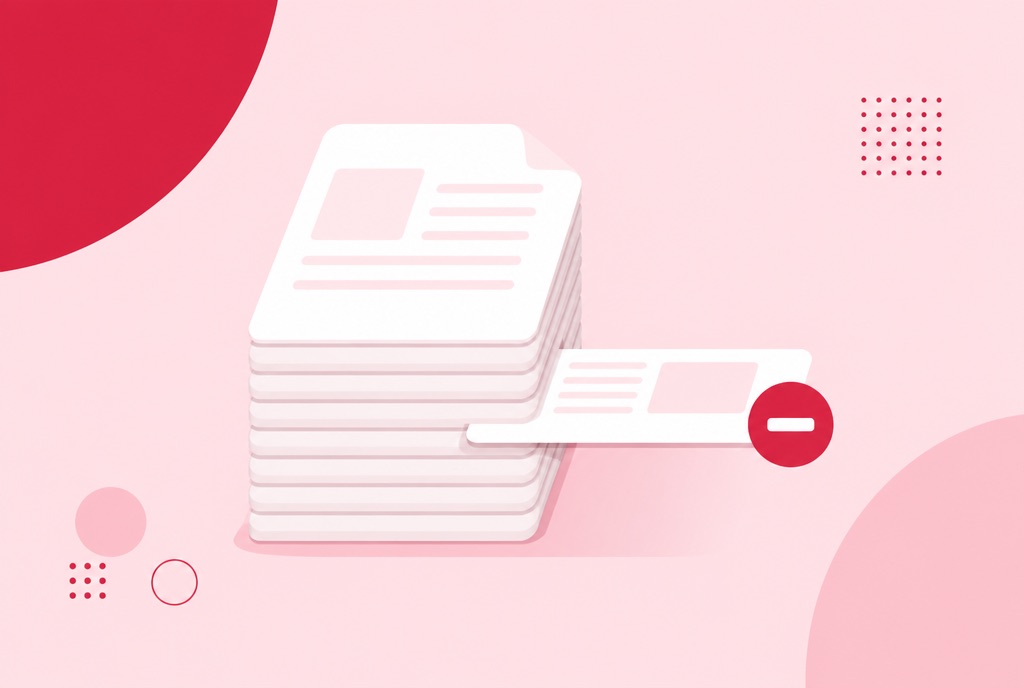
A blank side from duplex scanning, a fax cover sheet, the last three pages of someone else's report that got scanned into yours. Almost every long PDF carries a page or two that should not be there, and the fix is to delete pages from a PDF rather than live with them.
This guide covers removing single pages and ranges, how deleting differs from extracting and splitting, and what to reach for when the document needs reordering as well as trimming.
Delete pages from a PDF in your browser
- Open the Delete PDF pages tool and upload your PDF.
- Choose the pages to remove: single pages and ranges, such as 2, 5-7.
- Check the thumbnails, then download the trimmed document.
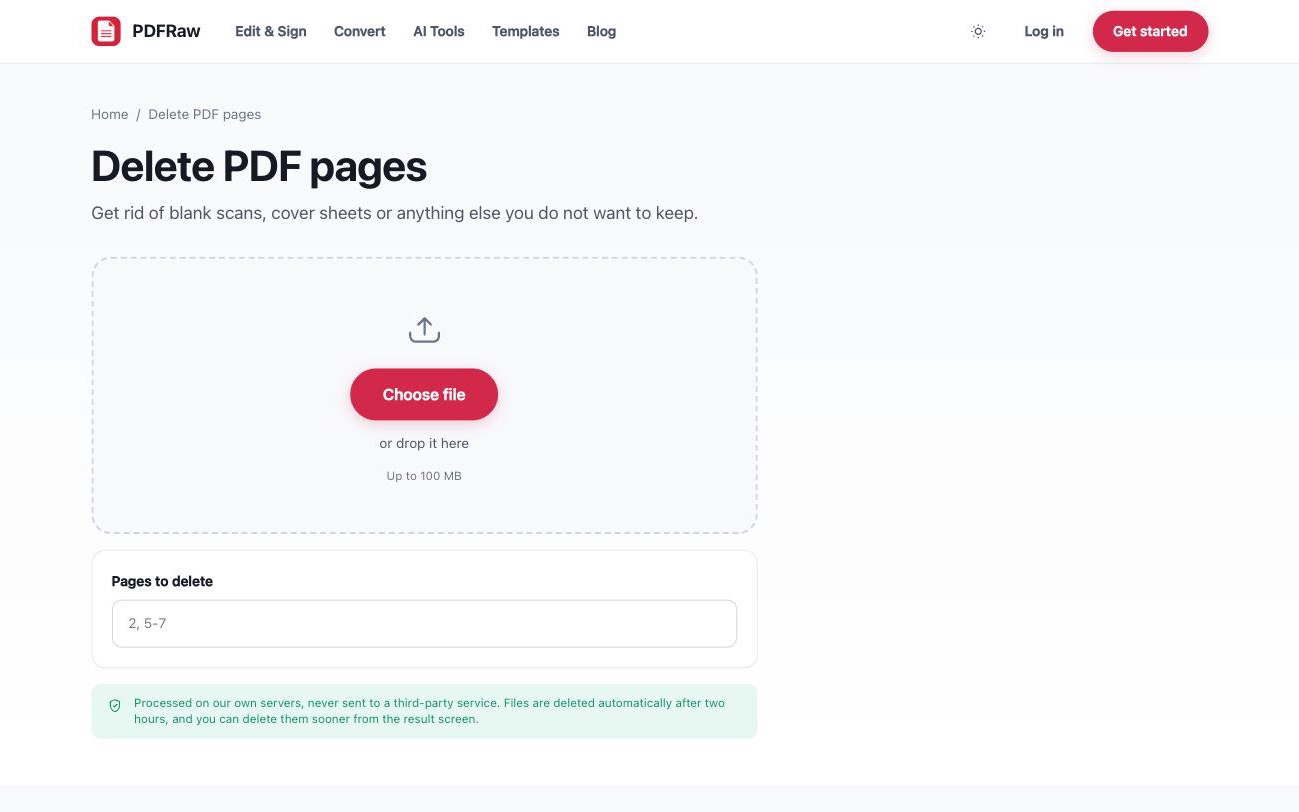
The pages you keep are copied without re-encoding, so nothing is recompressed and the text stays selectable. The tool is free, adds no watermark, needs no account, and files are deleted from our servers two hours after upload.
Removing single pages and page ranges
The selection box takes the same notation throughout: a single number removes one page, a range like 5-7 removes a run of them, and you can combine both, so 2, 5-7, 12 removes five pages in one pass. That covers the usual suspects: the blank backs a duplex scanner inserts after every sheet, a cover page you no longer need, or a chapter that belongs in a different file.
One thing worth a second look before you commit: the page numbers printed on the document are not always the PDF's page numbers. A title page or table of contents shifts everything, so "page 12" in the footer might be page 14 of the file. The thumbnails exist for exactly this reason. Trust what you see, not what the footer says.
Deleting pages also shrinks the file, which is a pleasant side effect when a merged scan bundle is bumping against an upload limit. But if the goal is purely size and every page needs to stay, deleting is the wrong lever. Compress the PDF instead, and see how to compress a PDF for picking a level.
Delete pages or extract pages: which one you need
Deleting and extracting are mirror images of each other, and picking the wrong one means selecting fifty pages instead of three. Delete removes what you select and keeps the rest. Extract PDF pages keeps what you select and drops the rest.
The rule of thumb: removing a few pages from many, delete. Keeping a few pages out of many, extract. If you need pages 4 to 6 of a 60-page contract, extracting them takes one range. Extraction has two extras worth knowing: pages come out in the order you list them, so you can reorder while extracting, and you can get one file per page instead of a single document.
When splitting beats deleting pages
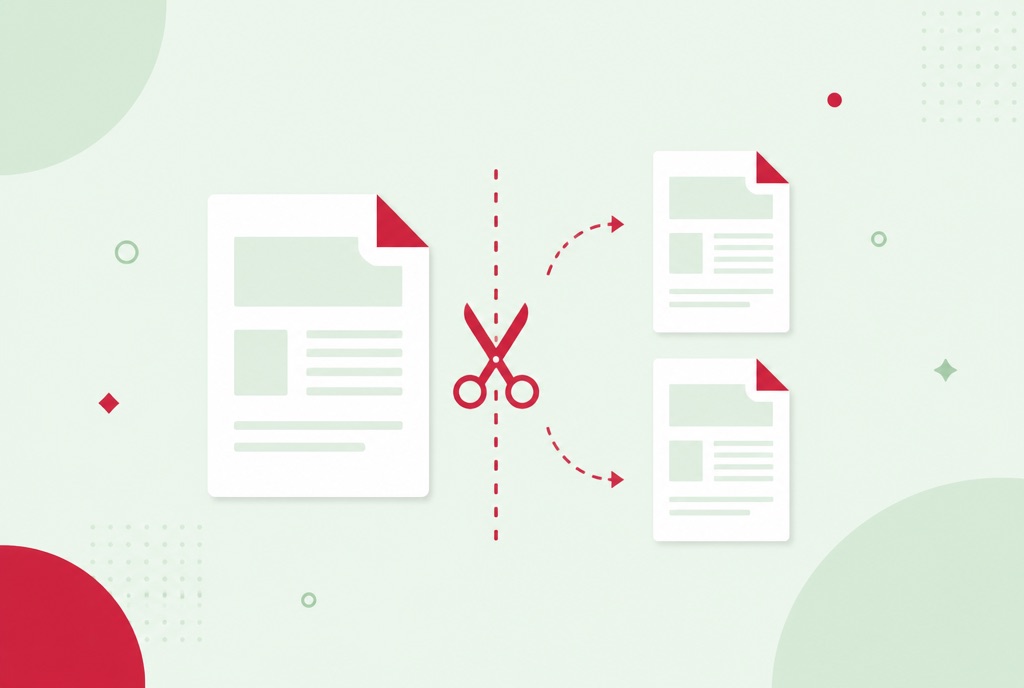
Deleting throws pages away. If you actually need both halves of a document, in separate files, that is a job for Split PDF, which breaks one PDF into several: one file per page, fixed-size chunks, or the exact ranges you choose.
A common case: a report where the client gets chapters 1 to 3 and the appendix stays internal. Splitting gives you both parts and loses nothing. Deleting the appendix would give you the client copy but destroy your own. The full walkthrough is in how to split a PDF.
Deleting pages while you reorder
If the document has more wrong with it than a few extra pages, pages out of order, some scanned sideways, Organize PDF handles all of it in one view. The whole document is laid out as thumbnails, and you can drag to reorder, rotate, duplicate or delete pages together instead of running three tools in sequence. Every change is reversible until you save, so you can experiment freely.
For a document that only needs pages removed, the dedicated delete tool is quicker. For a messy scan job that needs surgery, organize is the better starting point.
Frequently asked questions
Is deleting pages from a PDF free?
Yes. The tool is free, puts no watermark on the result, and does not require an account.
Will the remaining pages lose quality?
No. The pages you keep are copied without re-encoding, so image quality and selectable text are preserved exactly as they were.
Can I see which pages I am deleting before I download?
Yes. Thumbnails show exactly which pages are going before anything is removed, so nothing is deleted by surprise.
What if I delete the wrong page?
The tool produces a new trimmed file and never changes the file on your device, so your original still has every page. Upload it again and redo the selection.
How long are my files kept?
Two hours, then they are deleted automatically. There is also a delete button on the result screen if you want them gone immediately.