How to split a PDF into separate files
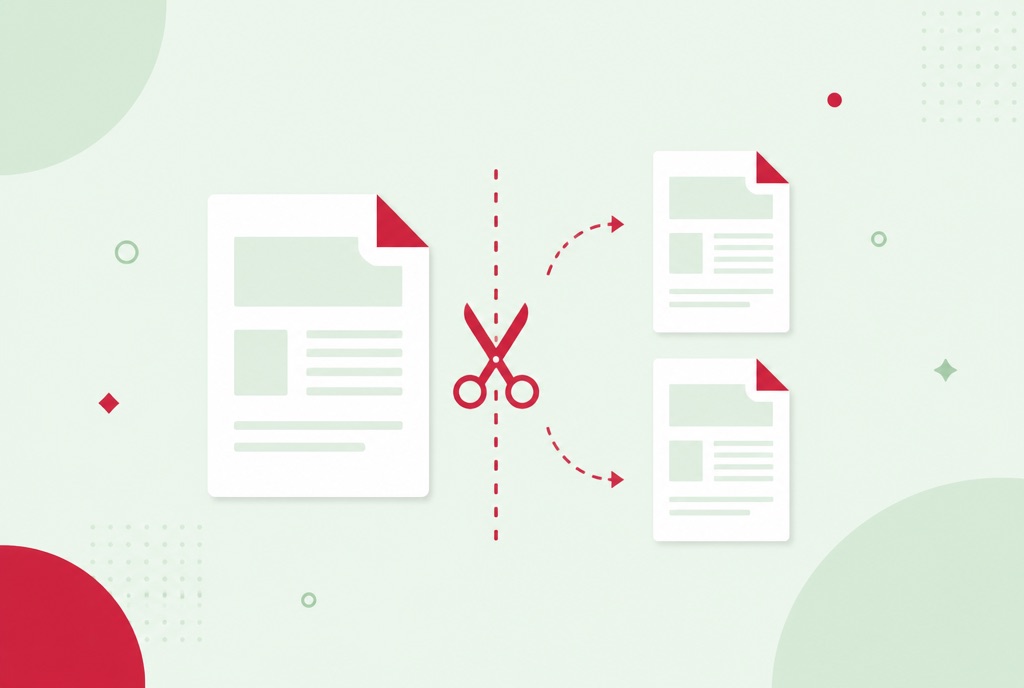
One PDF, four destinations. The signed page goes to legal, the invoice to accounts, chapter three to a reviewer, and the whole thing is one 60-page file. Knowing how to split a PDF turns that from four rounds of "please see page 41" into four clean attachments.
This guide covers the three ways to split a file, how to choose between extracting a range and splitting every page, and when the neighbouring tools, extract and delete, are the better fit for what you are actually doing.
Split a PDF in your browser
- Open the Split PDF tool and upload the file you want to break up.
- Choose how to split it: every page, fixed chunks, or custom ranges.
- Download the results individually or as a ZIP.
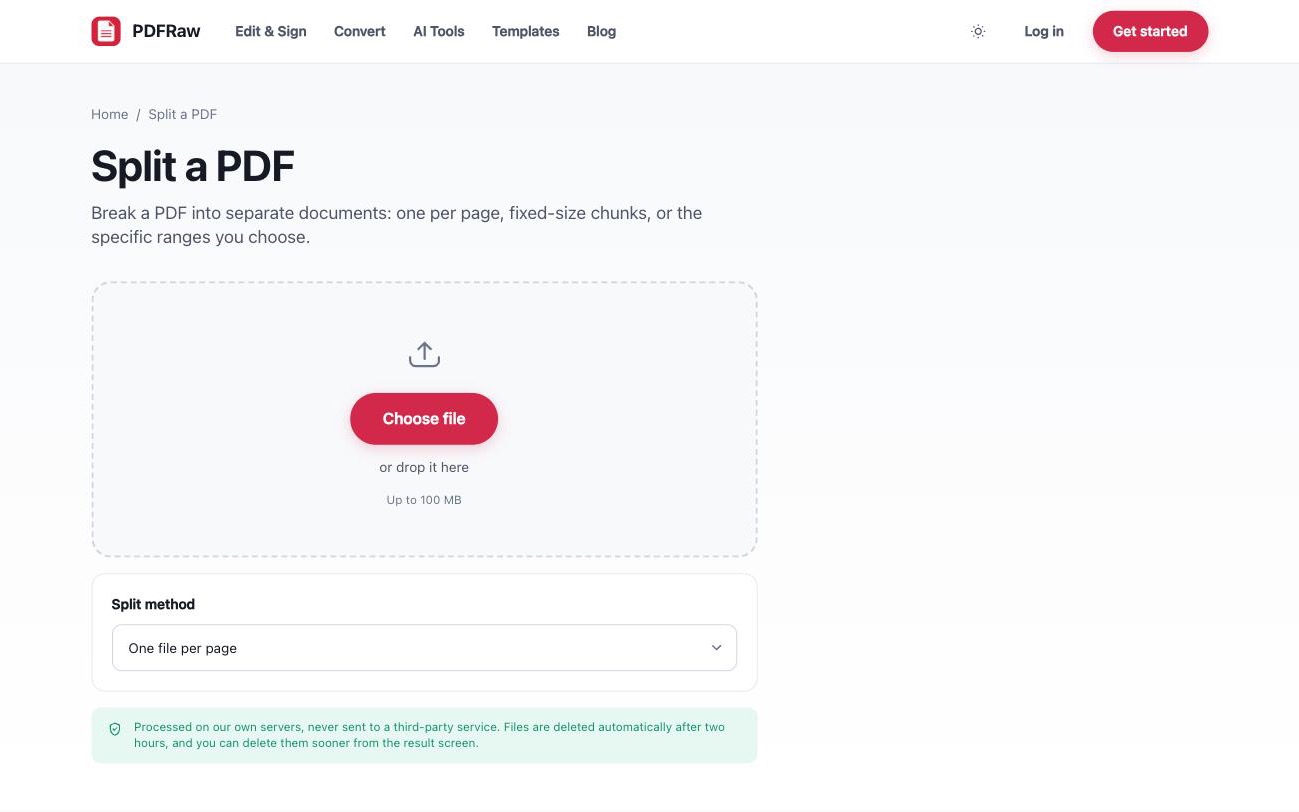
Page thumbnails load before anything is split, so you can confirm the cut points against the actual pages instead of guessing at page numbers. There is no watermark on the results, no account required, and files are deleted from our servers two hours after upload.
Three ways to split a PDF
- One file per page. Every page becomes its own PDF. Use this when the pages are genuinely independent documents, such as a stack of receipts or certificates that went through the scanner as one batch.
- A fixed number of pages per file. The document is cut into equal chunks, ten pages at a time for example. Useful for feeding a long file through a system with a per-file limit.
- Custom ranges. Enter something like 1-3, 8, 12-20 and each range becomes its own file. This is the mode for real-world documents, where the contract is pages 1 to 9 and the appendix is everything after.
Range mode is usually what people mean when they say they want to split a PDF: not confetti, just the two or three meaningful parts of the document as separate files.
Extracting a page range vs splitting every page
If you are unsure between the modes, ask what you will do with the output. Splitting every page produces many small files and is right when each page will travel alone. Ranges produce a few deliberate documents and are right when the file has sections that belong together.
A practical rule: count the files you want to end up with. One per page means split every page. Two or three means ranges. And if the answer is exactly one, because you only care about a handful of pages and not the rest, that is not really splitting at all, which brings us to the neighbouring tools.
Split, extract or delete: picking the right tool
Three tools cut pages out of a PDF, and they answer different questions:
- Split PDF breaks one file into several. Everything is kept, just in separate documents.
- Extract PDF pages pulls the pages you list into one new document and leaves the rest behind. Pages come out in the order you list them, so you can reorder while extracting, and -1 selects the last page without counting.
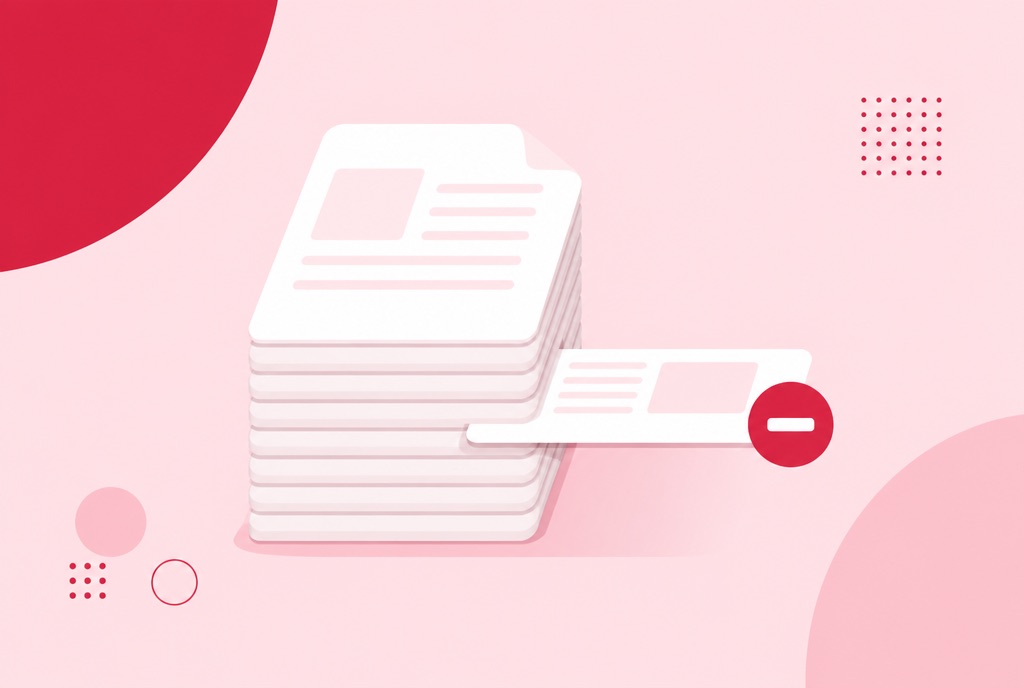
- Delete PDF pages removes the pages you name and keeps everything else as a single trimmed file. Right for dropping blank scans or a stray cover sheet, covered in how to delete pages from a PDF.
In short: split when every part matters, extract when only some pages matter, delete when only some pages do not.
After splitting: reassembly and size
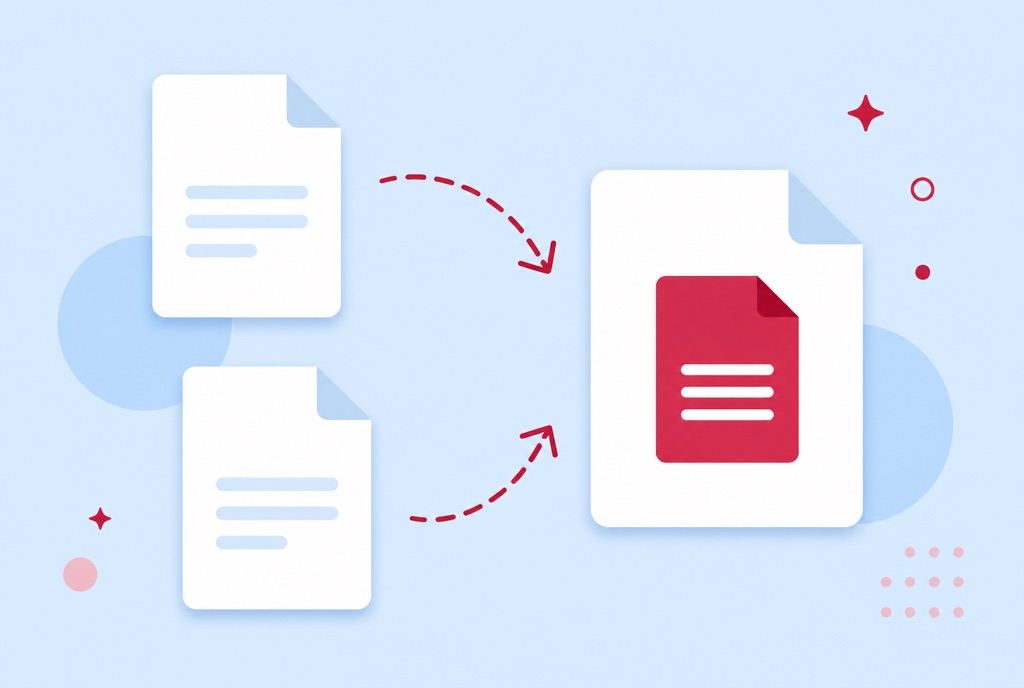
Splitting is freely reversible. If the parts turn out to be needed as one document after all, Merge PDF combines them again, with drag-to-reorder before anything is joined. That reverse workflow is covered in how to merge PDF files.
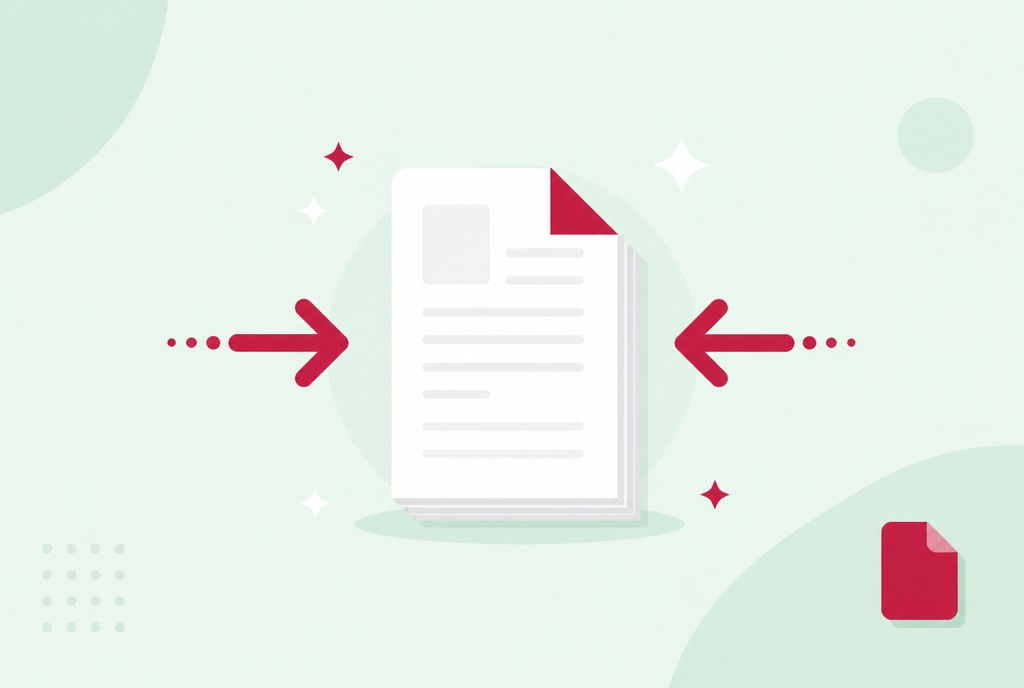
And if the reason you are splitting is that the whole file is too big to send, check first whether compressing it solves the problem in one step. Image-heavy scans often shrink by 70 to 90 percent, which may spare you the surgery entirely. The trade-offs are in how to compress a PDF.
Frequently asked questions
Can I split just a few specific pages out of a PDF?
Yes. Choose custom ranges and enter something like 1-3, 7, 15-20. Each range becomes its own file. If you want those pages together in a single new document instead, the Extract Pages tool does exactly that.
Do I have to download each part separately?
No. You can download the results individually or grab everything at once as a ZIP.
Is there a limit on how big the PDF can be?
100 MB per file. The tool splits one PDF at a time; upload the next one when the first is done.
Does splitting reduce the quality of the pages?
No. Pages are copied into the new files as they are, without re-encoding, so text stays selectable and images stay sharp.
How long are my files kept?
Two hours, then they are deleted automatically. There is also a delete button on the result screen if you want them gone immediately.