Why your filled-in PDF form looks blank to everyone else
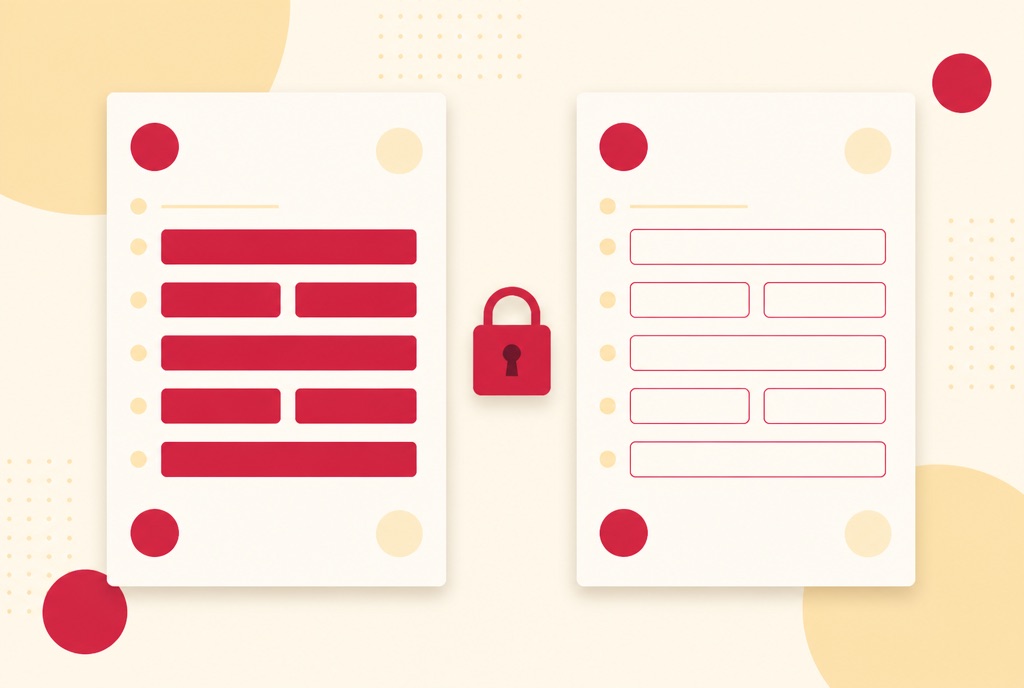
You spent twenty minutes on the form, saved it, attached it, and the reply comes back: "this is blank, can you fill it in?" You open your copy and there are your answers, exactly where you typed them. Both of you are looking at the same file and seeing different things.
This is one of the oldest PDF problems there is, and it is almost never user error. This guide explains what is actually going on inside the file, the five situations that produce a blank form, and the one step, locking the fields, that makes the problem impossible.
What is actually happening inside the file
A fillable PDF form is a page with a layer of fields sitting on top of it. When you type into a field, a well behaved program records two things: the value you typed, and a small drawing, in PDF terms an appearance, of that value sitting in the box. Viewers show the drawing. The value is what software reads.
The trouble is that not every program writes both. Some save the value and set a flag asking the next viewer to generate the drawing itself. Some viewers honour that flag; some ignore it and show the box empty. Some print the page without its field layer at all. None of this deletes your answers. It just means the answers are stored in a way that particular viewer does not display.
A quick test tells you which situation you are in: open the "blank" file and click into one of the empty boxes. If your text appears the moment the box gets focus, the values are there and the drawings are missing. If nothing appears, the values were never saved into that file, which is a different problem with a different fix.
The five reasons a filled form comes out blank
- It was saved by a viewer that wrote values but not drawings. The classic case: filled in one program, opened in another, and the second one does not regenerate appearances. The click test above shows the answers are there. The fix is to lock the form, covered below, or to re-save it from a program that writes both.
- It was never saved at all. You typed into the viewer built into a browser tab or an email preview, then attached the original file from your downloads folder. The tab was showing you your typing; the file on disk never changed. The fix is to download the filled copy from the viewer after filling, or to fill it with a tool that hands you back a new file.
- The form is a dynamic XFA form. Some agencies, notably Canada's IRCC and CRA, publish forms that only render in Adobe Acrobat Reader. In anything else they show a single page that says "please wait" and nothing more, and any values you manage to put in are not reliably stored. The Canadian forms catalog marks these as download only, for example the IMM 5257 visitor visa application, and tells you to complete them in Adobe Reader.
- It printed without its fields. Many viewers offer a choice between printing the document alone and printing the document with its form fields and annotations, and the default is not always the one you want. A form that looks fine on screen and comes out of the printer empty almost always has this setting behind it. Locking the form removes the distinction.
- The recipient's viewer cannot show fields. Phone quick-look previews, some webmail previewers and some document management systems render a simplified version of the page and skip the field layer. Your file is fine; their preview is not. Again, locking the form is what makes the answers survive.
If the form would not let you type in the first place, that is a separate problem, usually a flat scan with no fields at all; how to fill out a PDF form that will not let you type covers it. And if a form you filled earlier has since stopped accepting input, it has probably already been locked, which why can't I edit my PDF explains. A box labelled with the question rather than an internal name like "Text47" is a separate fix again, covered in why PDF form fields have weird names.
The fix: lock the fields after filling
Locking a form, which PDF software usually calls flattening, takes every field's value and draws it permanently into the page, then removes the field. There is no longer a value and a drawing that can disagree; there is just the page, with your answers on it. Every viewer shows it, every printer prints it, every email preview renders it, because there is nothing left to interpret.
The cost is the obvious one: a locked form cannot be edited as a form any more. If you are still working on it, or the recipient is expected to add to it, do not lock it yet. Keep an unlocked copy for yourself in any case, and send the locked one.
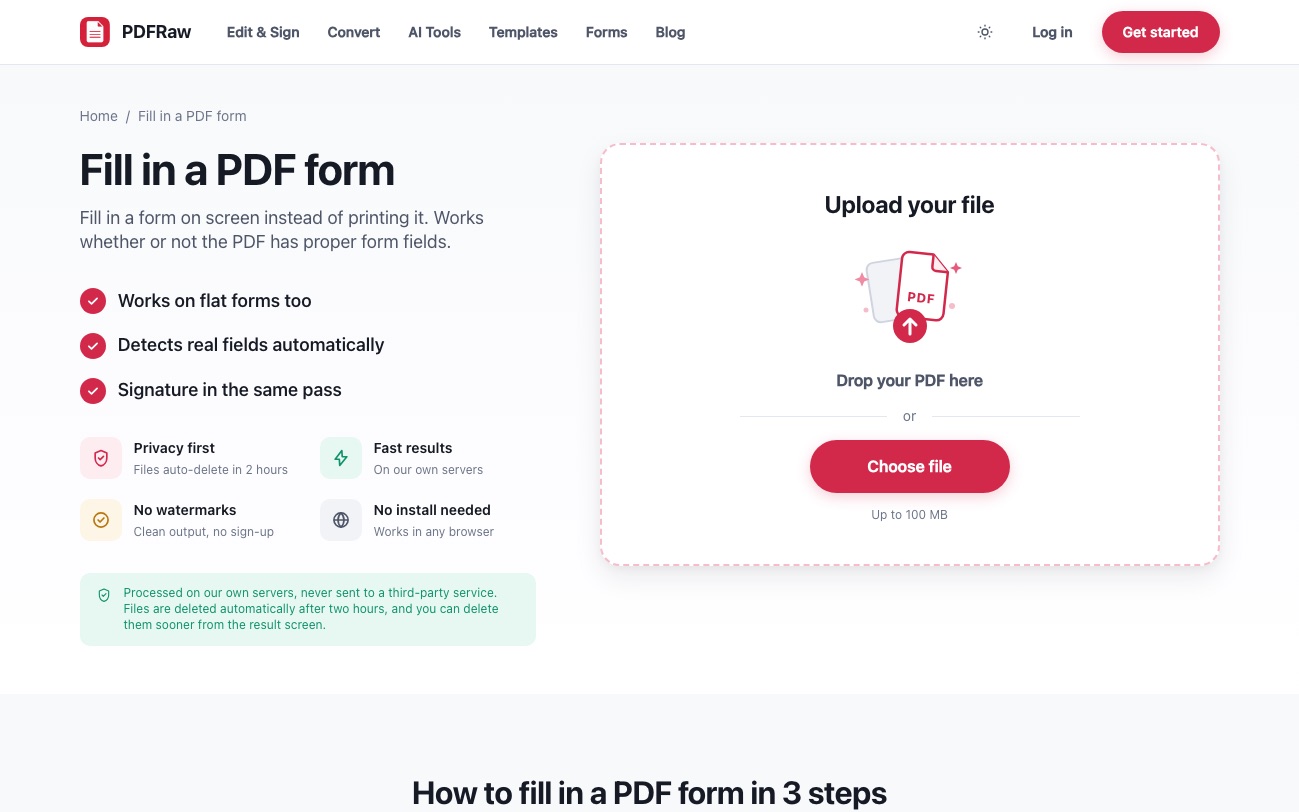
Two places on PDFRaw do this. On each official form page, the quick-fill panel has a checkbox, "Lock the PDF after filling", which is off by default so that anything you leave blank stays a live field for later; tick it and the downloaded PDF has its values made permanent and the fields removed. Either way, the filled PDF the form page generates has the drawing of every filled field redrawn, so the values show in any viewer even before locking.
The second place is the editor. Upload any fillable PDF to the Fill PDF tool, or open an official form in the editor from its form page, and the fields are detected and made editable on the actual pages. When you export, the dialog offers "Lock filled form fields" whenever you entered values, and it is on by default. If you meant to leave the form live for someone else, untick it.
Signatures are a different case
A signature you draw, type or upload with the Sign PDF tool or in the editor is placed as page content, an image on the page, not as a form field. It does not have a value and a drawing that can come apart, so it survives every viewer and every printer without any locking step. The same goes for text you place on a flat scan with the editor: it is part of the page from the moment you export.
The exception is a signature field built into the form by whoever designed it. That is a field like any other, and an unsigned one in a viewer that hides fields can look like a gap. Locking the form after you sign resolves it the same way it resolves every other field. How to sign a PDF online covers the signing step itself, including when a typed or drawn signature is legally enough.
Check it before you send it
The blank form problem is invisible from inside the program that created it, which is why it survives. Thirty seconds of checking in a second place catches it.
- Open the file you are about to attach, not the tab you filled it in. If it opens from your downloads folder with your answers showing, the answers were saved.
- Open it in a second viewer, or on your phone. If it looks right in two programs it will look right in most.
- Print one page to PDF from the second viewer. If the answers survive a print, they will survive the recipient's printer.
- If the form still needs work from the other side, say so in the email, and leave it unlocked deliberately rather than by accident.
Two small things on the way out. A locked form is sometimes a little larger than the live one, and if an email gateway rejects it, compressing the PDF brings it down without touching the page content. And if the form carries an ID number or a signature, adding a password before it travels is cheap insurance; is it safe to upload a PDF online explains what happens to the file while PDFRaw works on it.
For the full path from finding an official form to sending it, including the quick-fill panel and the editor route, how to fill out government forms online walks through it end to end. And for the other way a filled box can arrive wrong, one that survives every check above because the characters really are there, see why one form wants 09/04/2026 and another wants 2026-09-04.
Frequently asked questions
My answers show when I click into a box but not otherwise. Are they saved?
Yes. The values are in the file; what is missing is the drawing of each value that viewers display. Lock the form after filling and the values are drawn permanently into the page, so every viewer shows them without clicking.
What does flattening a PDF form mean?
Flattening, which PDFRaw calls locking, draws every field's value permanently into the page and removes the field. The answers become ordinary page content that any viewer, printer or preview shows. The form can no longer be edited as a form afterwards, so keep an unlocked copy if you might need one.
Does locking the form change how it looks?
No. The locked page shows exactly what the filled form showed, minus the pale field highlighting some viewers add. The values sit in the same boxes in the same font; the boxes have simply stopped being interactive.
The form shows a single page saying please wait. What is wrong?
It is a dynamic XFA form, which only renders in Adobe Acrobat Reader. Download it and open it there. PDFRaw marks these forms as download only on their form pages rather than offering an in-browser fill that would come up blank.
Can I unlock a form after locking it?
Not back into a live form: locking removes the fields, and no tool rebuilds them. You can still type over a locked page with the Fill PDF tool, which places text anywhere on a flat page, or go back to the unlocked copy you kept.
Why does my filled form print blank even though it looks fine on screen?
Your viewer is printing the document without its field layer; most offer a choice between the document alone and the document with form fields and annotations. Either change that setting, or lock the form first so the answers are part of the page and the setting no longer matters.
Related articles
How to fill out a PDF form that will not let you type

How to fill out government forms online, without a printer
Why can't I edit my PDF? The four real reasons
Why a government form calls a box 'Check Box 23' instead of the question