How to convert Word to PDF
A Word file is a living document: it reflows, fonts substitute themselves on other machines, and Track Changes can resurface at the worst possible moment. Before a CV, invoice or contract leaves your hands, you convert Word to PDF so the recipient sees exactly the page you approved.
Word itself can save a PDF, and this guide is honest about when that is the right answer. But when you are on a phone, on a machine without Office, or holding ten files that all need converting, a browser tool is the faster route. Here is how both work.
Why send a PDF instead of a Word file
A .docx renders differently depending on who opens it. A missing font gets silently substituted, page breaks drift, and a carefully fitted two-page CV becomes three pages on the recruiter's machine. A PDF freezes the layout: it renders identically on every device, because the fonts and positioning travel inside the file.
There is also the awkward baggage Word files carry: tracked changes, comments, and the ease with which anyone can edit the numbers. A PDF is not tamper-proof, but it does not invite casual editing, which is exactly what you want for documents with your name and figures on them. If a document needs actual protection rather than inconvenience, that is a separate step, covered in how to password protect a PDF.
Convert Word to PDF in your browser
- Open the Word to PDF converter and upload your .docx file, or drag it in.
- Wait a few seconds while it converts. Sensible settings are picked automatically.
- Download the PDF and give it a quick scroll before sending.
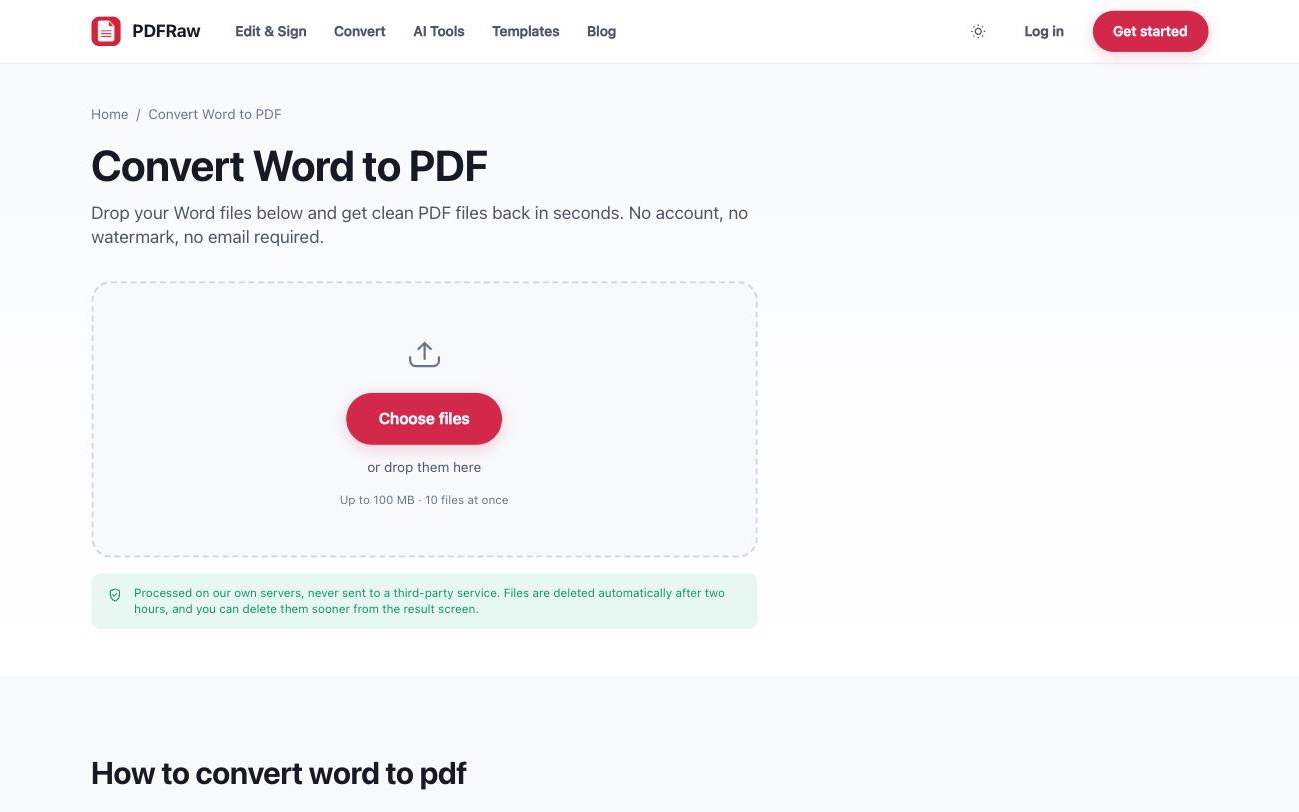
Layout, fonts and images are preserved, so the PDF looks like the document you wrote. There is no watermark and no account, and uploads are capped at 100 MB per file. Files are processed on our own servers and deleted automatically two hours after upload.
Convert Word to PDF in batches
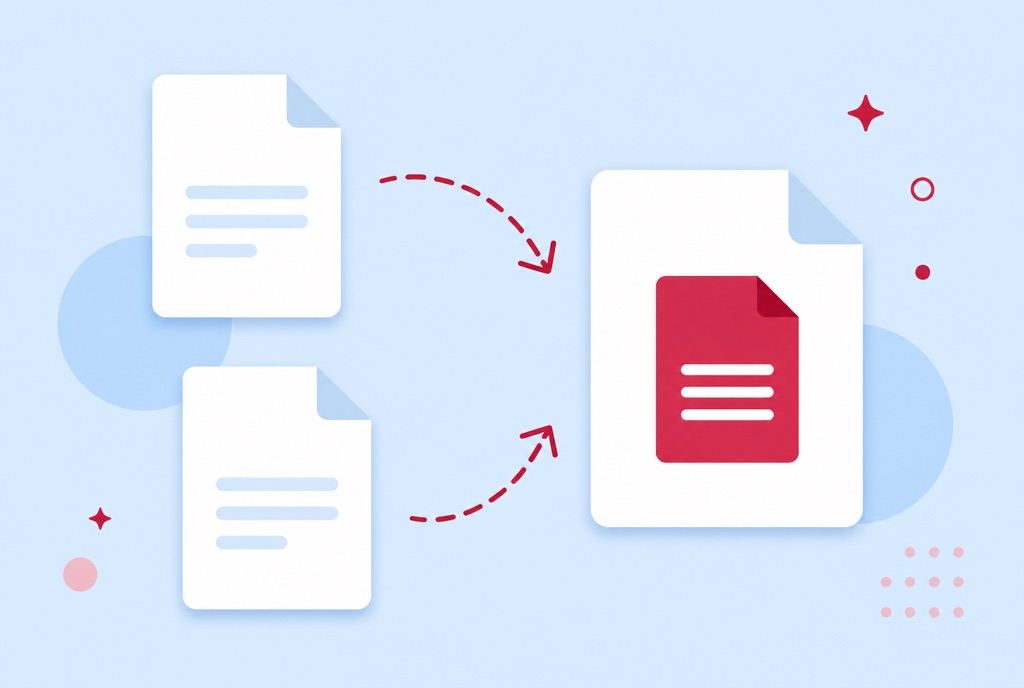
Month-end paperwork rarely arrives one file at a time. The converter accepts up to 10 Word files in one go and hands them back together as a ZIP, which turns a folder of reports into a folder of PDFs in one pass rather than ten.
If the batch is destined to become one document, convert first, then combine the PDFs with the Merge PDF tool; the order of operations is covered in how to merge PDF files. And if the finished file lands over an attachment limit, how to compress a PDF covers getting it under.
What about Word's built-in Save as PDF?
Honest answer: if you have Word installed on the machine in front of you, File, Save As, PDF is fine. It runs locally, it costs nothing extra, and for a straightforward document the output is perfectly good. Nobody needs a web tool to convert one file on a desktop that already has Office.
The browser tool earns its place everywhere else: on a phone or tablet, on a computer without Office, on a locked-down work machine where you cannot install anything, or when a stack of files makes opening each one in Word tedious. It also covers the common case where you have the .docx but not Word itself, because nothing needs to be installed at all.
Converting back from PDF to Word
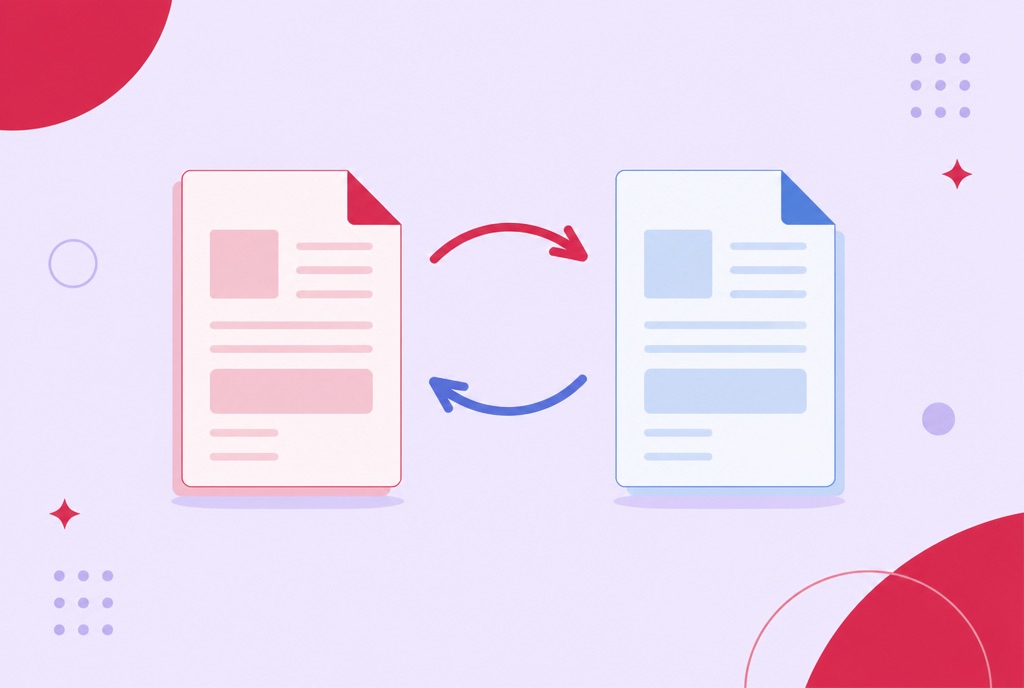
The conversion is not one-way. When someone sends you a PDF that needs editing, PDF to Word turns it back into a .docx, with page structure and text carried across rather than flattened into a picture. The details and honest limitations are in how to convert a PDF to Word.
The habit worth forming: keep the .docx as your working copy, send the PDF as the deliverable, and only convert back when the original file is genuinely lost. A round trip through two conversions is never quite as clean as keeping the source.
Frequently asked questions
Is the Word to PDF converter really free?
Yes. Everyday conversions are free with no account and no watermark. There is a paid plan for very large files and high-volume use, but you do not need it for normal work.
Will my formatting change in the PDF?
Layout, fonts and images carry across, so the PDF looks like the original document. As with any conversion, a document with unusual formatting deserves a quick scroll before you send it.
Is there a file size limit?
Uploads are capped at 100 MB per file and 10 files per batch. That covers the overwhelming majority of documents.
What happens to my files after conversion?
They are deleted automatically two hours after upload, and you can delete them sooner from the result screen. We never read their contents and never use them to train anything.
Do I need Word installed to convert a document?
No. The conversion runs in your browser on our servers, so it works the same on Windows, macOS, Linux, iOS and Android, with or without Office.