Blacking out text in a PDF: is it actually gone?
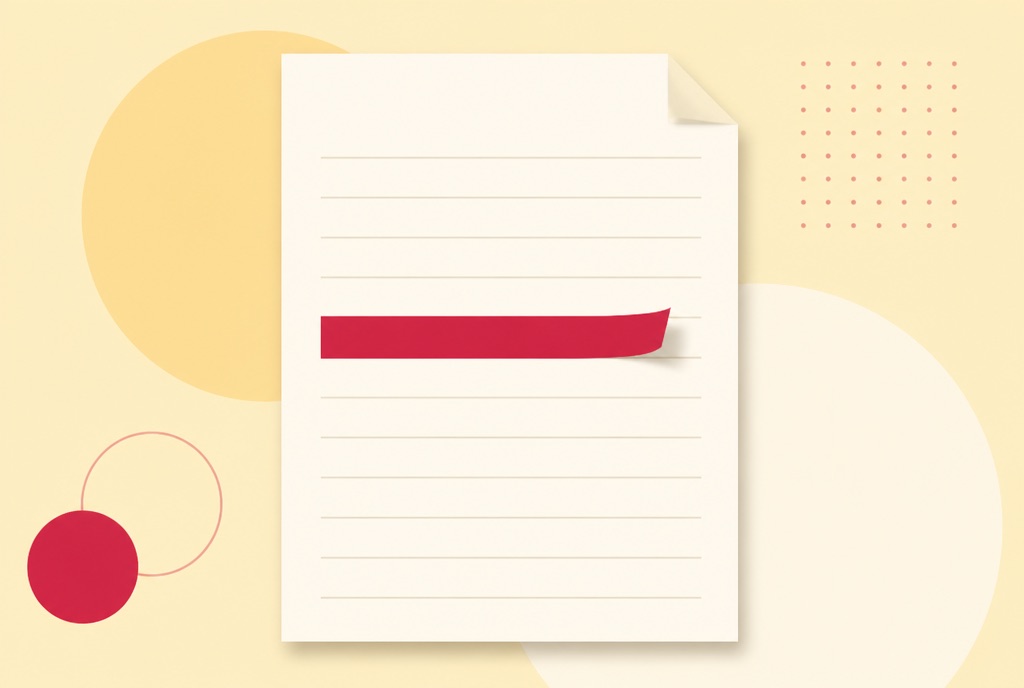
A black rectangle over a Social Security number looks final. Copy the page and paste it into a text editor, though, and on plenty of "redacted" PDFs the number comes out anyway, sitting right where it always was, just drawn over rather than removed.
This is not a hypothetical. It is exactly what a drawn black box does and does not do inside a PDF, why it fools the eye but not a script, and what it actually takes to make covered text stop existing.
A black box and a removed word are two different things
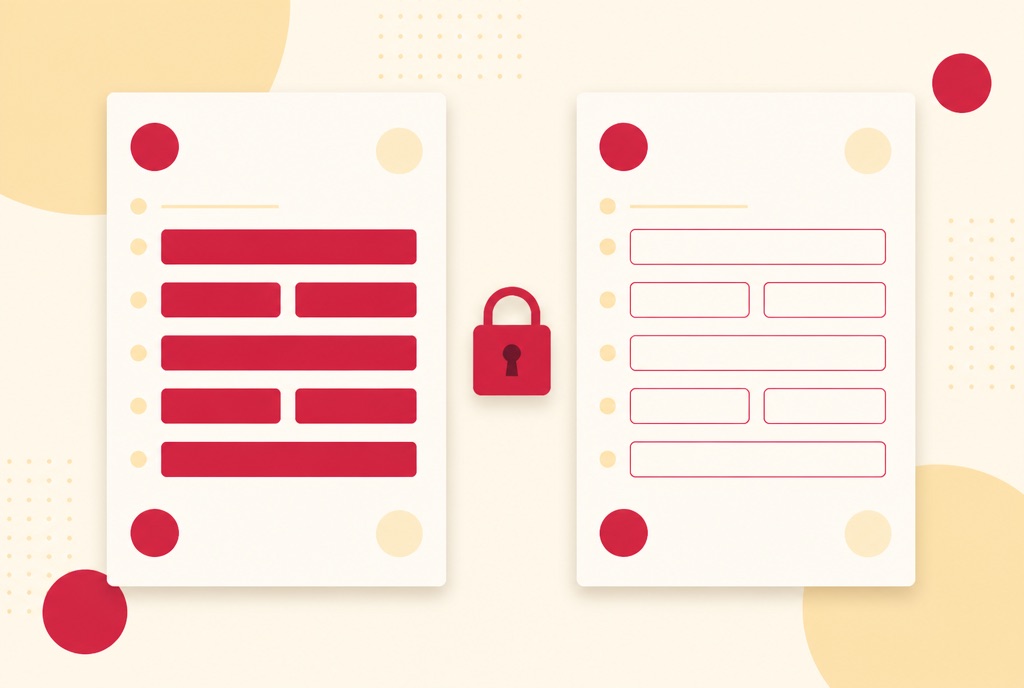
A PDF page is not a photograph; it is a set of instructions, draw this word here, draw this shape there, and a viewer follows them in order. Drawing a black rectangle over a line of text adds one more instruction to the page: paint a box at these coordinates. It does not delete the instruction that drew the text underneath it. Visually the text is covered. Inside the file, both instructions are still sitting there, one on top of the other.
That is why a "redacted" PDF passed around online has embarrassed people for years: select the covered area and copy it, or run any text extraction tool over the page, and the hidden instruction runs exactly as it always did, because nothing told it to stop. The box only ever changed what a human eye sees, not what the file contains.
What actually removes the text
The only reliable fix is to stop the page containing the text instruction at all. PDFRaw's editor does this by rendering the covered page as a picture of itself, at 150 DPI, the moment a black-out box is on it: the whole page becomes one image, with the black box baked into the picture. There is no text instruction left to extract, because there is no text on that page any more, just pixels.
Every other page in the document is left completely alone: real, searchable text stays real, searchable text. Only the pages you actually marked lose their text layer, and only because that is the price of making the covered content genuinely gone rather than merely covered.
The setting that decides which one you get
In the PDF editor, the Black out tool draws the box, exactly like drawing any other shape. What happens at export is a separate choice: whenever the document has at least one black-out box on it, the export dialog offers "Permanently remove blacked-out content", turned on by default, with the cost stated plainly, the pages carrying a box become images rather than text.
Leave that setting off and you get the box without the guarantee: a visual cover, useful for a draft you are marking up for your own reference, not for anything you are about to hand to someone else or post publicly. Leave it on, which is the default specifically because most people drawing a black box mean to hide the content for real, and the page becomes unrecoverable at the source.
The tradeoff, stated plainly
A page turned into an image loses two things a text page has: the text can no longer be selected or copied from that page, and search inside the document will not find words that were on it. For a page whose whole point was hiding one line, that is a fair trade. For a long document where only one page has anything sensitive on it, it is worth knowing in advance rather than discovering afterward, which is exactly why the export dialog states it up front instead of applying it silently.
This is not the same feature as Acrobat's enterprise redaction tooling, which logs every redaction as an auditable action for compliance workflows; how to edit a PDF without Adobe is upfront that redaction with an audit trail is Acrobat's territory. What PDFRaw's true redaction does is narrower and just as real: the marked content stops existing in the file. There is no log of the action, because for most people the point was never the log, it was making sure the number is actually gone.
It also solves a different problem than encryption does. Password protecting a PDF controls who can open the file at all; it does nothing about a black box on a page someone with the password can already read. Redact what should not be visible to anyone, then encrypt if the whole document should not be visible to just anyone, and the two together cover more than either alone.
When a visual cover is fine, and when it is not
- A cover you keep for yourself, marking up a draft, blocking out a section you are still deciding about: leave permanent removal off, and you can always undo it before you export.
- Anything you are about to email, upload, post, or hand to someone else, an account number, a signature, another person's address on a shared document: turn permanent removal on, or leave the default in place.
- A completed Form W-9 or a bank statement carries a Social Security number or account digits that a client or landlord does not need to see in full; the same logic behind redacting all but the routing and account number on a bank letter applies here, just drawn rather than typed over.
- Sharing a document under an NDA does not mean every page is fair game; black out what the agreement does not cover before it leaves your hands, not after.
- A scanned page with no text layer at all has nothing to extract in the first place; a black box there is already the whole story, because there was never a hidden instruction underneath it to begin with.
- If the sensitive content is a value in a form field rather than printed text, locking the form after clearing the field, covered in why does my filled PDF form look blank, is the more direct fix than drawing a box over it.
One habit worth keeping regardless: check the exported file the way anyone else would open it, not just the editor tab you were just working in. Select the blacked-out area and try to copy it. If nothing comes out, it worked. Is it safe to upload a PDF online covers the other half of that question, what happens to the file itself while the editor is working on it.
Frequently asked questions
If I draw a black box over text in a PDF, is the text actually deleted?
Not unless you also turn on permanent removal at export. A black box on its own only adds a shape drawn over the text; the text instruction underneath is untouched and can still be copied out or extracted.
Can someone recover text I blacked out?
If you exported with permanent removal off, yes, by selecting the covered area or running text extraction on the page. With permanent removal on, no: the page carrying the box becomes an image, and there is no text instruction left to recover.
Does password protecting a PDF also redact its content?
No. A password controls who can open the file at all; it does nothing to content already visible once someone has the password, or the original unprotected copy. Redaction and encryption solve different problems and are often used together.
Why does the page look different, or stop being searchable, after true redaction?
Because the page carrying a black-out box is replaced with an image of itself so the covered content genuinely stops existing. That page loses selectable text and stops appearing in in-document search; every other page is unaffected.
Does this work on a scanned document?
A scan with no text layer has nothing to extract from a black box in the first place, so the visual cover is already the complete picture. If the scan was made searchable with OCR afterward, treat it like any other text page and use permanent removal.
Is this the same as Adobe Acrobat's redaction feature?
Not quite. Acrobat's enterprise redaction logs each redaction as an auditable action, which some compliance workflows require. PDFRaw's true redaction genuinely removes the marked content by replacing the page with an image, but it does not keep an audit log of having done so.