How to fill out a PDF form that will not let you type
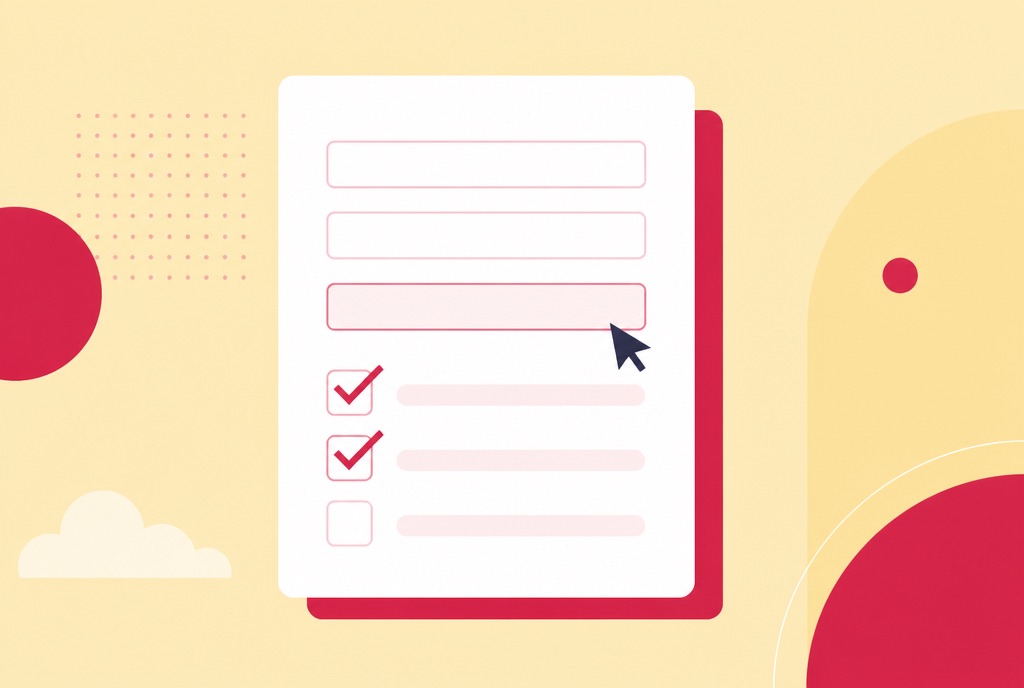
The form arrives by email, you open it, click the first blank line, and nothing happens. No cursor, no typing, no clue why. Before you give up and reach for a printer, the fix for how to fill out a PDF form like this is simpler than it looks, because the problem is the file, not you.
This guide explains the difference between interactive and flat forms, how to fill in both kinds in the browser, how to add the signature most forms want at the end, and why the printed result matches what you typed.
Why the form will not let you type
There are two kinds of PDF forms, and they look identical on screen. An interactive form has real form fields built into the file: click a box and a cursor appears, press tab and it jumps to the next field. A flat form is just a picture of a form, usually a scan or a plain export, with lines and boxes drawn on the page but no fields behind them.
Most forms people are actually sent are the flat kind. When clicking does nothing, that is all it means: there are no fields to click into. Your PDF reader is not broken, and no setting will fix it, because there is nothing in the file to enable. What you need is a tool that lets you put text on the page anyway.
Fill out a PDF form in your browser
- Open the Fill PDF form tool and upload the form.
- Type into the fields, or click anywhere on the page and type if it has none.
- Tick the boxes, sign if needed, and download the completed form.
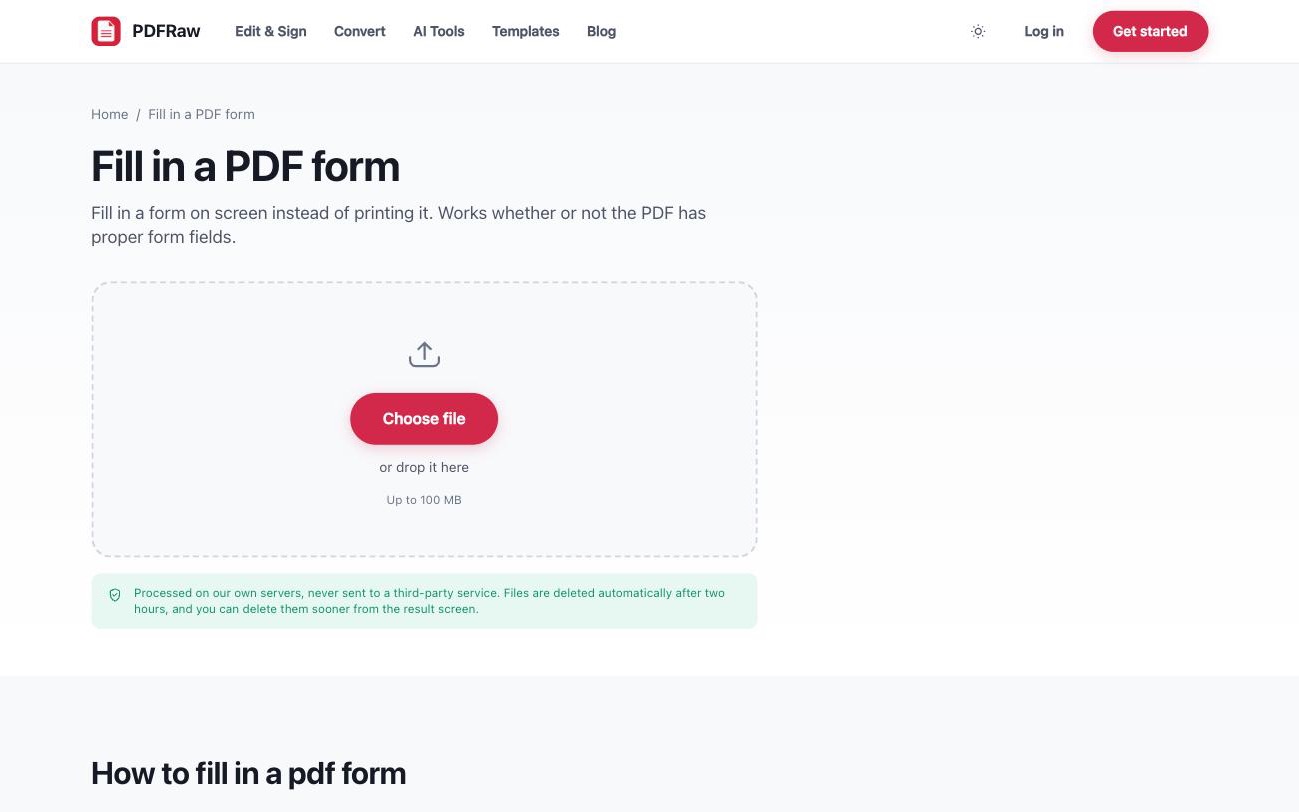
The tool handles both kinds of form in the same place, so you do not need to diagnose the file before you start. It is free, adds no watermark, needs no account, and files are deleted from our servers two hours after upload.
If the form is an official government one, a tax form, a benefits claim, an immigration application, you can skip the download entirely: the forms catalog holds the agency PDFs ready to open, and how to fill out government forms online walks through finding the right one and filing it afterwards.
Filling a PDF form with real fields
When the PDF does have proper form fields, they are detected automatically and made editable, with the tab order preserved. That last part matters more than it sounds: a well-made government or bank form is built so tab walks you through it in reading order, and keeping that order means you can fill a long form from the keyboard without hunting for the next box with the mouse.
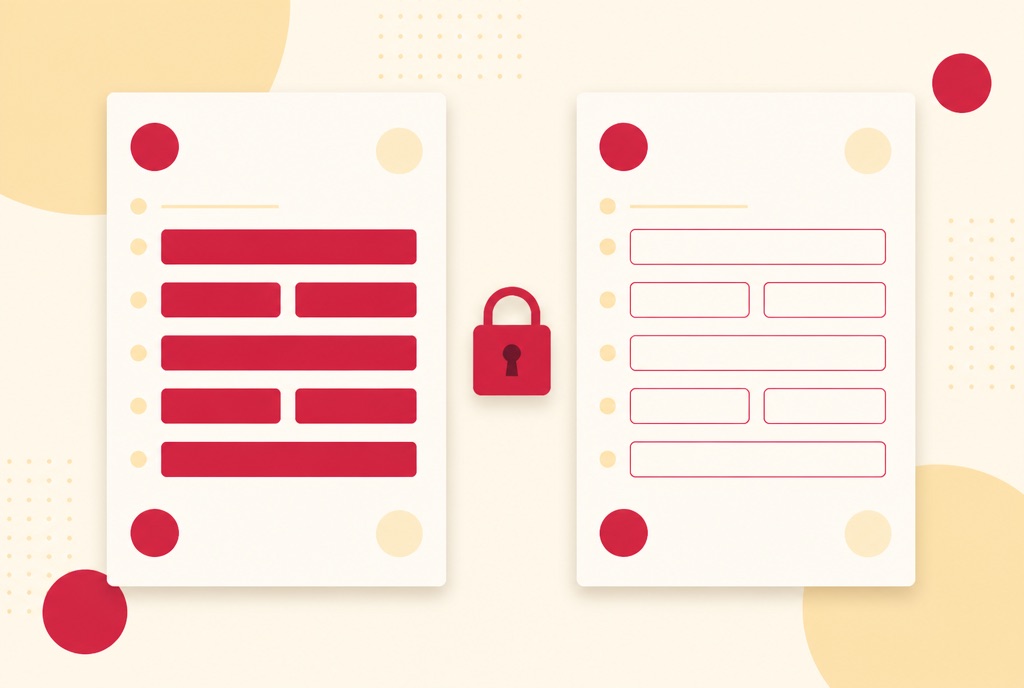
Fill the fields, tick the checkboxes, and check the awkward ones, dates and ID numbers, before downloading. Machines read those fields; typos in them are the usual reason a submitted form bounces. Then lock the fields on export, so the answers are drawn into the page and show in every viewer; why a filled PDF form looks blank to everyone else explains what goes wrong when they are not.
Filling out a flat scanned PDF form
On a flat form there are no fields to detect, so the text tool takes over: click anywhere on the page and type. Place each answer on its printed line, adjust until it sits naturally, and repeat down the page. Checkboxes on a scan are just printed squares, so mark them the same way.
The result prints identically to what you see on screen. Your typed answers are part of the page when it comes out of a printer or gets emailed onwards, which is the entire point: the form looks properly completed, not annotated. And typed answers do not suffer the classic fate of handwritten ones, being illegible to whoever processes the form.
If you find yourself doing heavier surgery than filling blanks, changing the document's own text rather than adding yours, that is editing, not filling, and how to edit a PDF without Adobe covers those options. If the obstacle is the form's language rather than its fields, how to fill out a Dutch government form when you do not read Dutch takes the hardest version of that problem.
Signing at the end, or starting from a template
Most forms end with a signature line, and the signature is built into the same pass: draw it, type it, or upload a photo of your real one, then place it on the line. No second tool, no printing the form just to sign it. For documents where the signature is the whole job, a contract with nothing else to fill, the dedicated Sign PDF tool does the same thing, and how to sign a PDF online covers where such signatures are legally binding.
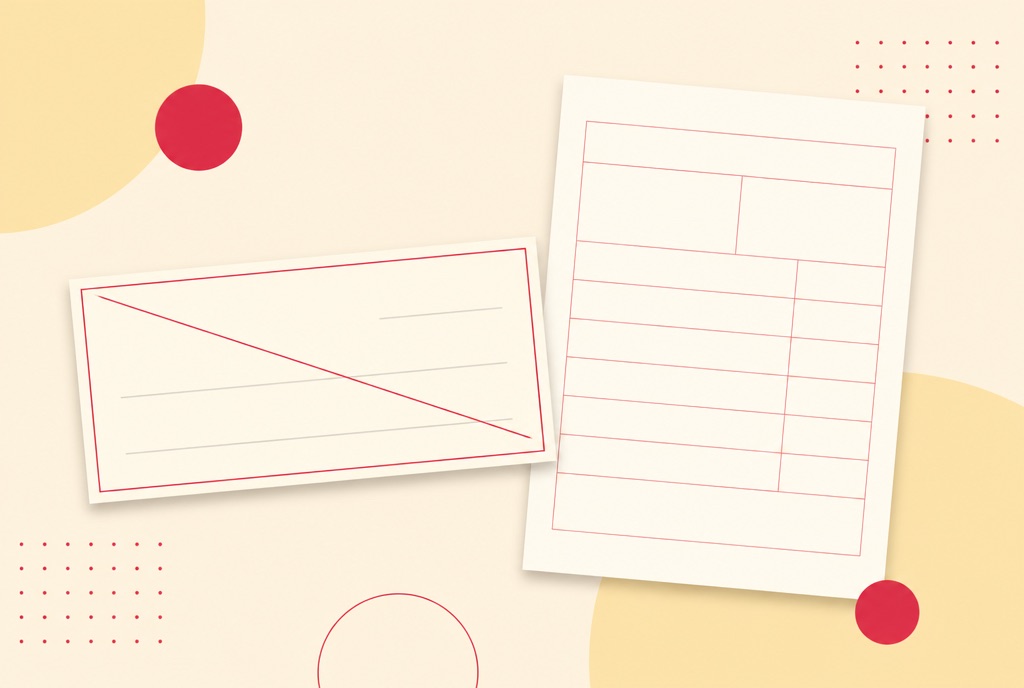
One more case worth knowing: if you are creating the document rather than completing someone else's, skip the blank-page stage. The form templates library has ready-made invoices, receipts, a direct deposit authorization and other business documents you fill in directly, which beats recreating a layout from scratch. Direct deposit form vs a voided check covers that one specifically, including what a voided check actually proves that the form does not.
Frequently asked questions
The form will not let me type in it. What now?
That means it has no interactive fields, usually because it is a scan. Use the text tool to click anywhere on the page and type; the result prints identically.
Will my typed answers print correctly?
Yes. What you see on screen is what prints. The answers are placed on the page itself, so the completed form prints identically wherever it is opened.
Does it work on forms with real fillable fields?
Yes. When the PDF has proper form fields, they are found and made editable automatically, with the tab order preserved so you can move through the form from the keyboard.
Can I sign the form in the same tool?
Yes. Draw, type or upload your signature in the same pass as filling, so you are not switching tools for the last line of the form.
Is filling out a PDF form online free?
Yes. No watermark, no account required, and files are processed on our own servers and deleted automatically two hours after upload.
Related articles
Why your filled-in PDF form looks blank to everyone else

How to fill out government forms online, without a printer
How to sign a PDF online without printing it
Direct deposit authorization or a voided check: what payroll actually wants